Drop in a photo, an illustration or an AI image and get every object back as its own transparent layer, with the surface behind them filled in. The first split is free: sign in with Google, no card needed.
Your image
Every sample here is a real split. Take one apart and download it.
Travel items illustrationSample split · free to explore and download
Drag a layer or hide it with the eye.
9 layersplus the filled background
Reusable Water BottleObject
SmartphoneObject
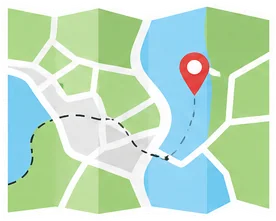
Folded Map with PinObject
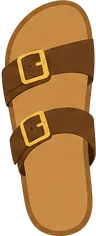
Right Leather SandalObject
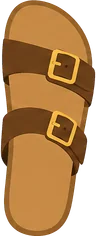
Left Leather SandalObject
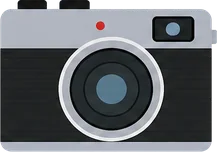
Straw SunhatObject
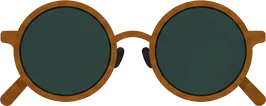
Vintage CameraObject
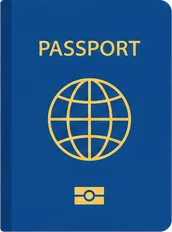
Round SunglassesObject
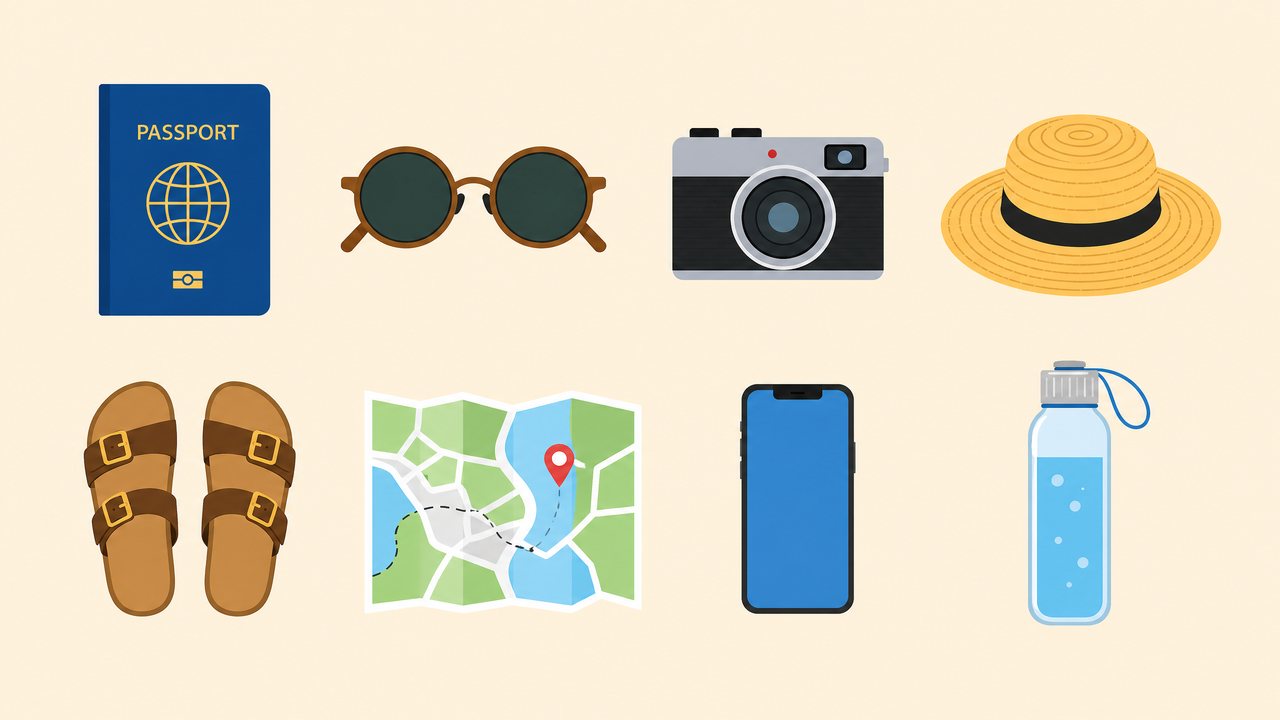
Blue PassportObject
Background (filled)Filled in behind every layer
Sample files are reduced for the page; your own splits come at up to 2,560 px.
Reuse
Take one object and use it somewhere else
Every object comes out as its own transparent PNG at the size it has in the picture, with a clean edge. Drop the camera, the hat or the sandals into a new layout without cutting anything out by hand. What was behind each object is filled in, so the original arrangement is still a complete picture.
Clean transparent edges, no fringe of the old background
Original size and position are kept in the PSD
One download per layer, or all of them as a ZIP
Eight items, eight layers. Each one is a clean transparent PNG.
How to separate the layers of an image
Upload a flat image
Drop, paste or pick a PNG, JPG or WebP: a banner, a poster, a product shot, an AI image or a screenshot.
AI finds every element
It lists the text blocks, objects and graphics, names each one and works out which sits in front of which.
Layers are cut from your pixels
Front objects are lifted first, so the ones behind them come back whole. The background is filled in.
Check, then export
Hide or drag any layer to check it. Copy one layer, or download them all as PNG files, a ZIP or a layered PSD.
Layer separator, background remover or object remover?
Three tools that sound alike and return different things.
Background remover
Object remover
Layer separator
You get
One cut-out of the main subject
The picture without one object
Every element as its own layer, plus the background
The rest of the picture
Thrown away
Kept, flattened
Kept, as separate layers
Behind the object
Nothing
Filled in
Filled in, and hidden parts of other objects restored
Good for
Product cut-outs, profile photos
Cleaning up a photo
Editing, rearranging and reusing a finished design
Main parts or every element
Main parts
The default. Related items are grouped so each subject, each text block and each set of similar decorations is one layer. Fewer layers, lower cost, easier to work with.
Every element
Each distinct item gets its own layer, for example three ice cubes instead of one group. Use it when you need to move the small pieces one by one.
Objects separated from real images
Photos and flat-lays split into one layer per object.
Product photographers, marketplace sellers and designers who need the objects in a photo as separate pieces: for a new composition, a catalogue or an animation.
When not to use it
Images where objects overlap take longer: 5 to 10 minutes instead of about 2.
A white die-cut border on a white background can come back with a slightly uneven edge.
Strong cast shadows are harder: they can stay in the background or come back as a layer of their own.
Glowing outlines keep a faint halo around them.
It does not split a character into rigging parts (eyes, mouth, hair) for Live2D or Spine.
Busy real-world photos with many overlapping objects split less cleanly than designed images.
Pay per layer. Your first split is free.
A layer costs 10 credits and the filled background is free. Subscribe for the lowest price per layer, or buy a pack once and use it whenever you like.
Free
$0
One full split
150 credits, up to 15 layers
Sign in with Google, no card
Every layer downloadable
Basic
$12.00/ month
About 140 layers a month
$0.086 per layer
1,400 credits every month
Cancel anytime
Lowest price per layer
Pro
$36.00/ month
About 450 layers a month
$0.08 per layer
4,500 credits every month
Cancel anytime
Or pay once
No subscription. Pack credits do not expire while your account is active.
$9.90Starter pack
90 layers$0.11 per layer
$24.90Plus pack
240 layers$0.10 per layer
$59.00Studio pack
620 layers$0.095 per layer
Every plan and pack: PNG, ZIP and layered PSD export
A failed split costs nothing
Secure checkout by Stripe
Secure checkout through Stripe. A pack or a subscription only adds credits to your account. USD prices. Review the final amount and any applicable tax at checkout before paying. Packs never renew; a subscription renews each period until you cancel it in your account. Unused credits can be refunded within 7 days of the payment that added them. The credit cost shows before each layer; finished results need no second payment to view or download.
Image layer separator: questions and answers
Is there a free trial?
Yes. Sign in with Google and get 150 credits, enough for one full split of up to 15 layers. No card is needed. The sample splits can be explored and downloaded without an account.
What does the free split include?
Every layer as a transparent PNG, a ZIP of all layers and the layered PSD, with no watermark.
Which files can I upload?
PNG, JPG or WebP, up to 20 MB.
How large is the output?
Up to 2,560 px on the long side. A larger upload is scaled down to that before it is split.
How many layers do I get?
Usually 5 to 10 and at most 15, plus a filled background that is never charged. Related items are grouped, so a set of ice cubes or a line of text is one layer. Choose Every element to split finer.
Is the part hidden behind an object restored?
Yes. An object partly covered by another comes back whole. Only the hidden part is drawn by AI; everything you can see is cut from your own pixels.
Is the text editable?
Partly, in beta. In the PSD with editable text, the words it can read become Photoshop type layers that you can retype and set in another font. Logos, curved, outlined or multicolour lettering and text it cannot read stay pixel layers, and so does all text in the PNG files, the ZIP and the standard PSD. You can always hide a text layer and type new words over the filled background.
What happens when I edit the text?
A type layer looks exactly like the original until you edit it. Then Photoshop sets the words in the closest of four common fonts (Arial, Times New Roman, Impact or Courier New) at the size and colour measured from your image, so the lettering can look different. The PSD holds only the font's name, so a machine without it is asked to substitute one.
What does a layer cost?
10 credits a layer. The background is free, and a layer that fails is not charged.
How long does a split take?
About 2 minutes when the elements do not overlap. When objects cover each other, every level of overlap adds a pass and the split can take 5 to 10 minutes. You can leave the page; the result is saved in My splits.
What happens to my images?
Uploads and results are private to your account and are deleted after 30 days. Download anything you want to keep.
What does an image layer separator do?
It takes a flat image and returns its elements as separate transparent layers, together with the background that was behind them.
Does it work on photos?
Yes, best on images with distinct objects on a simple background, such as product shots and illustrations. Crowded scenes with many overlapping objects split less cleanly.
Are the edges clean?
Edges are computed from the difference between your image and the same image with the object removed, so the object keeps its real outline and does not carry a strip of background with it.
What about shadows?
Images with strong cast shadows are harder to split cleanly: the shadow can stay in the background or come back as a separate layer. Flat, evenly lit images give the cleanest layers.
Can I pull out just one object?
For now the tool returns all main elements; you then download the one you need as a PNG. A one-object mode is planned.
Split your first image free
Sign in with Google and get 150 credits: one full split of up to 15 layers.