
How to Edit Text in an Image: Change the Words, Keep the Design
Text in a JPG or PNG is pixels, not type. To edit it, clear the old words, rebuild the background and set new type in a matching font, size and colour.

On this page7 sections
You cannot click into the text of a JPG or PNG and retype it, because in a flat image the letters are pixels, not type. Editing it means clearing the old words, rebuilding the background behind them, and setting new type in a matching font, size and colour—or splitting into an editable-text PSD so plain text lines become retypable type layers.
Three ways to change the words in a picture
In editors like Photoshop, type layers store the words, font, size and colour separately; exporting to JPG or PNG throws that away and merges the letters into pixels. There are three routes back:
Download PSD.A worked example: the sneaker banner
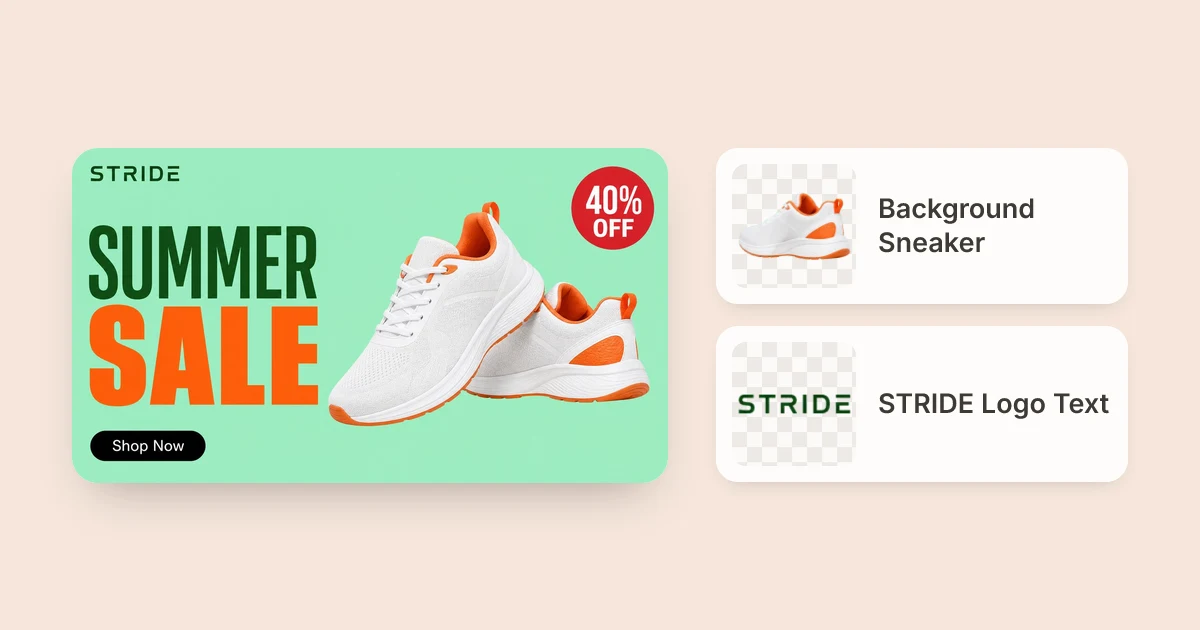
Here is a real split from the sneaker example page:
 Original
 SUMMER and SALE hidden
In the PSD with editable text, plain text becomes type while logos and graphic-embedded text stay pixels:
| Layer | In the PSD with editable text | Why |
|---|---|---|
| Headline Text SUMMER | Type layer | Plain lettering in one colour |
| Headline Text SALE | Type layer | Plain lettering in one colour |
| STRIDE Logo Text | Pixel layer | A logo stays an image, so it is never replaced by a font |
| Shop Now Button | Pixel layer | The words are part of the button graphic |
| Red 40% OFF Badge | Pixel layer | The words are part of the badge graphic |
The smartwatch example shows the same pattern: “Time to Move” and “All-day health tracking” are type layers, while the PULSE logo and $199 price badge stay pixels. To change words that stayed pixels, hide that layer, type new words over the filled background, and rebuild the badge or button shape if needed.
How to edit text with the editable-text PSD
- Upload the imagePNG, JPG or WebP, up to 20 MB.
- Split it into layersText blocks, objects and graphics come back as named layers over a filled background.
- Edit in-browser with Quick Type (optional, free)Double-click any
Editablelayer on the canvas or pressTto rewrite words, switch across ~97 Google Fonts, or adjust size, colour, tracking, tilt and strokes. - Save PNG or click Download PSDSave the updated composite as a free PNG, or press Download PSD to write real Photoshop type layers with synchronized preview pixels.
- Open in Photoshop or PhotopeaType layers keep their matched Google Font name (or optional system-font fallback via
Prefer system fonts only) and any outline or shadow effects. - Proofread and exportBecause initial copy is read from the picture, verify spelling before exporting PNG or JPG.
Matching the font, colour and size
Our visual classifier matches each clean line against ~97 self-hosted open-source Google Fonts (SIL OFL / Apache 2.0) and measures size, baseline colour, tracking, tilt angle and outer strokes.
For example, SUMMER matches League Gothic, SALE matches Anton, and tilted outlines stay editable in both the browser preview and the exported PSD.
- Identify the font: use Photoshop’s Type > Match Font (or a web font identifier) tightly cropped to one clear line, install the match, and switch the type layer’s font while keeping its size and colour—checking commercial licences if publishing. Or keep original pixel layers for unchanged words and set only new words.
- Colour, size, width and position (by hand): sample colour from the solid middle of a thick letter, match capital-letter height over the old layer at 50% opacity, adjust tracking or horizontal scale for condensed/wide faces, align the baseline and hide the old layer.
Limits to know about editable text
FONTS.txt lists the free Google Fonts used so Photoshop can retype with the same face, or tick Prefer system fonts only before downloading to use Arial, Impact, Times New Roman or Courier New metadata while keeping rendered pixels.Which approach should you use?
| Approach | Good when | Effort |
|---|---|---|
| Retouch, then retype | One short line on a simple background | Background repair by hand, then font matching |
| Split into layers, retype over the background | Stylized wordmarks or complex multi-colour art | Pick clean font over rebuilt background |
| Quick Type + layered PSD export | Headlines, subtitles, prices and slanted outlines | Edit live in browser or retype in Photoshop with matched Google Fonts |
Split a poster or banner and download the PSD with editable text to see which lines come back as type. Sign in with Google for 10 free credits, enough for One element, and check in daily for more, no card needed (10 credits a layer; background free).




FAQ
How can I edit text in a JPG or PNG?
Remove the old words, rebuild the background behind them, and set the new words on a type layer above. Splitting the image into layers does the background part for every text block at once, and the editable-text PSD turns the plain lines into type layers you can retype directly.
Can I edit text in an image without Photoshop?
Yes. GIMP can repair the background and add text for free, and Photopea opens PSD files in the browser, including the type layers of an editable-text PSD.
How do I find out which font is used in an image?
Use a font identification tool. Photoshop has Type > Match Font for a selection in an image, and several websites identify fonts from an uploaded picture. Crop tightly to a single line of clear text; decorative or distorted lettering is harder to match.
Why does my edited text look different from the original?
A flat image does not store the font name, so a classifier matches the glyphs visually to the closest open-source Google Font in our curated library.
In Download PSD, Photoshop preserves both that Google Font name and pre-rendered pixels so nothing shifts until you edit, or you can switch fonts right inside Quick Type before downloading.
Can I change the colour of text in an image?
If the text is its own layer, yes: recolour the pixel layer with a colour overlay, or, if it is a type layer, set a new colour in the Character panel. On a flat image you have to select the letters first, which is hard to do cleanly along anti-aliased edges.
Which text cannot be made editable?
Logos and wordmarks, curved or outlined lettering, multicolour text, and lettering printed on an object or inside a button or badge. These stay pixel layers so they look exactly as they did; hide the layer and type over the filled background if you need new words there.