Character to Layers: Split Characters for Live2D & Art
Turn flat character art, anime busts or VTuber concepts into named body-part layers with covered hair, neck and clothing restored cleanly for PSD edits or rigging prep.
Your imageCharacter preset
Mode
Layer count
Optional
Guides both the free preview boxes and the final split.
Free preview: see every layer and the price first. 10 free credits with Google sign-in.
Or try a sample4 real splits
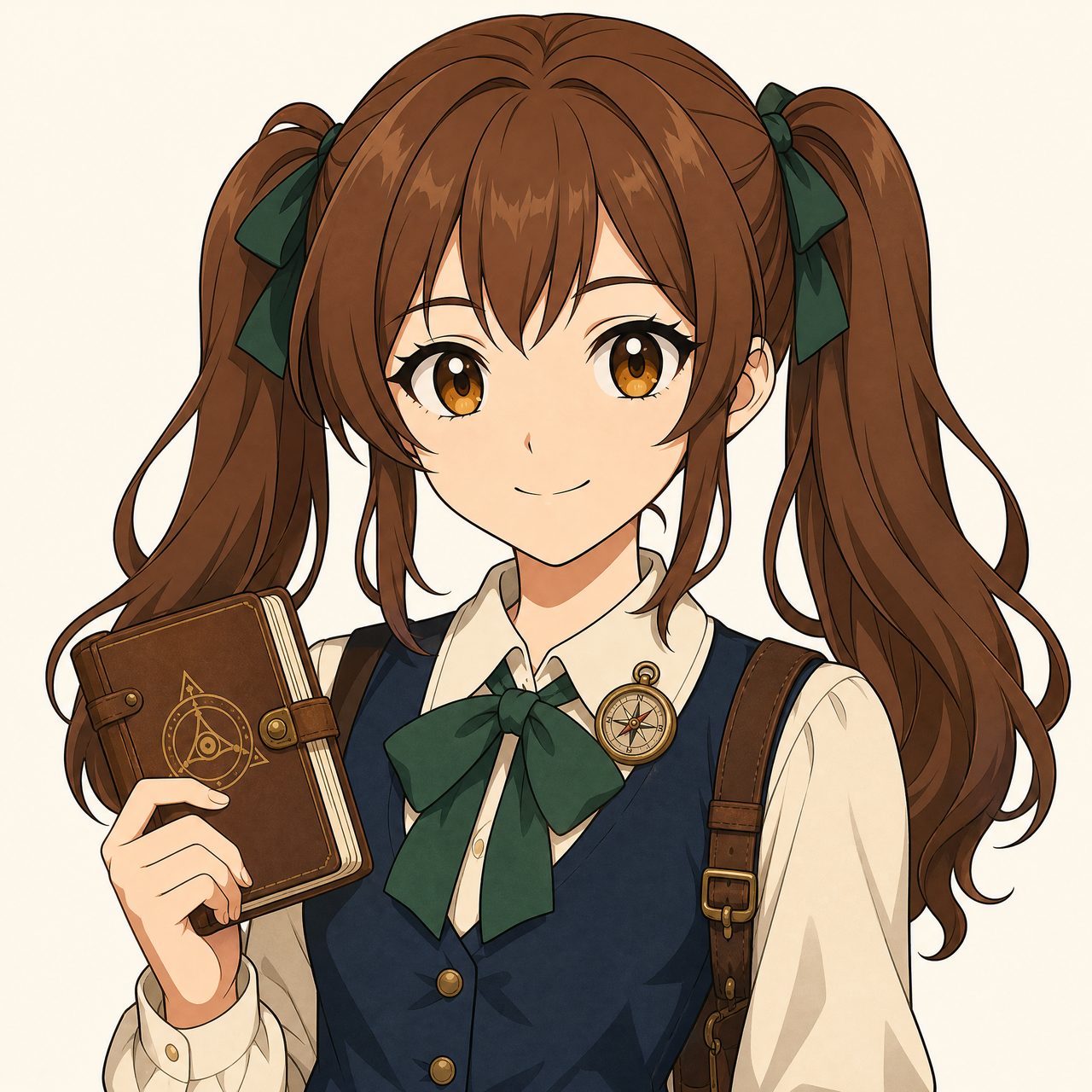
Twin-tail character with spellbookSample split · free to explore and download
Loading layers0 / 14
Drag a layer or hide it with the eye.
13 layersplus the filled background
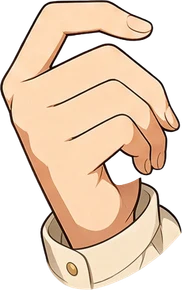
Hand Holding BookObject
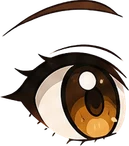
Right Eye and BrowObject
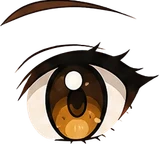
Left Eye and BrowObject
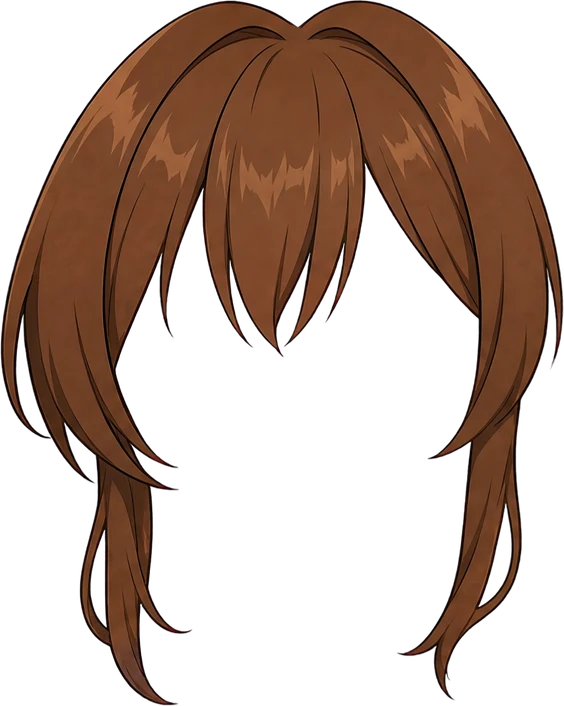
Front Hair and BangsObject
MouthObject
NeckObject
Neck RibbonObject
Pocket Watch Compass BroochObject
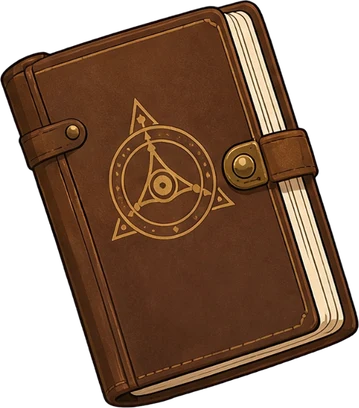
Held SpellbookObject
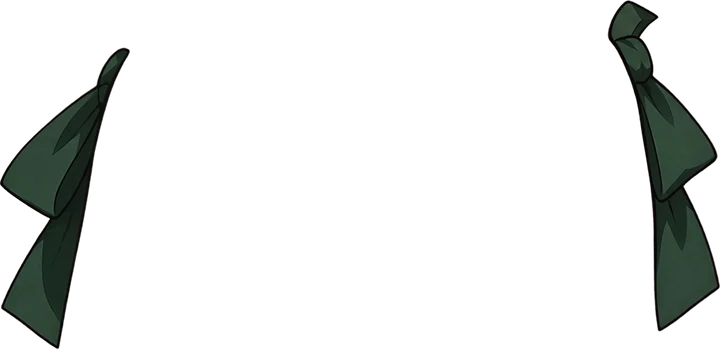
Hair RibbonsObject
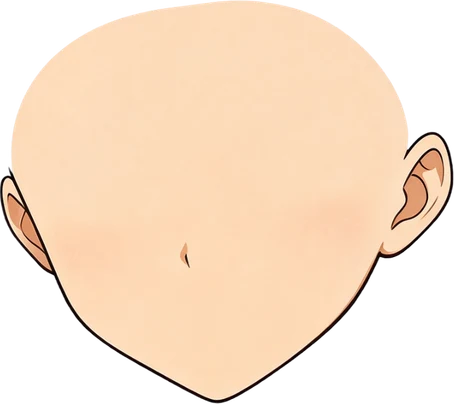
Face BaseObject
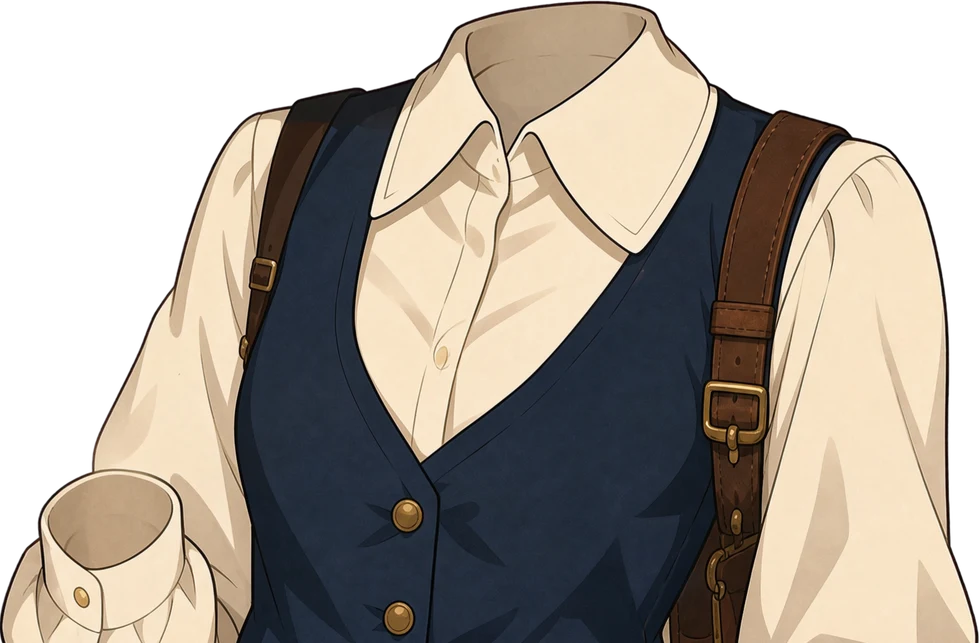
Body and OutfitObject
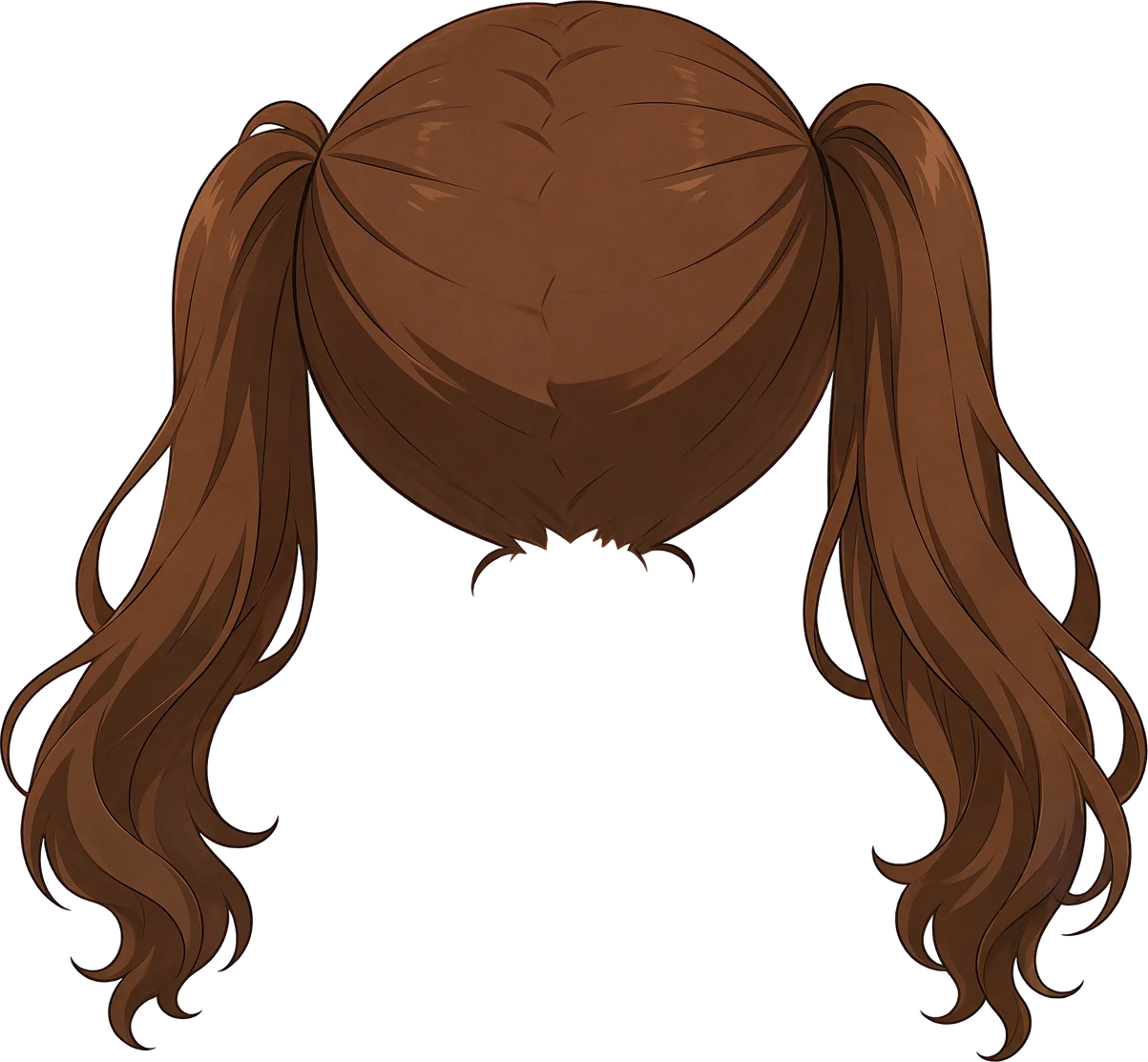
Back Hair and Twin TailsObject
Background (filled)Filled in behind every layer
Editable text layers use matched free Google Fonts; Download PSD includes Photoshop type.
Automatic body-part planning
Plan hair, facial features and outfits automatically
When LayerSplit detects drawn characters, it splits them by anatomy and costume instead of treating the entire figure as one flat object. Back hair, front bangs, eyes, mouth, torso clothing and accessories land on distinct layers while concealed neck and hair areas are completed behind them.
Prefilled separation note lets you customize which parts split or stay merged
Covered skin, hair and collars behind bangs or arms come back complete
Use Split again on a finished garment or head layer for finer Live2D parts
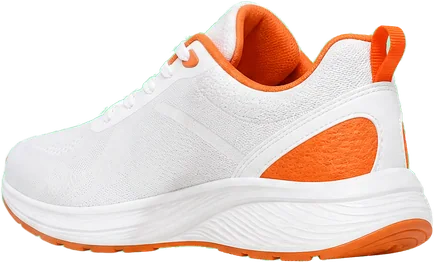
The flat banner. One shoe covers part of the other.
How to split a character illustration into layers
Upload a flat image
Drop, paste or pick a PNG, JPG or WebP: a banner, a poster, a product shot, an AI image or a screenshot.
AI finds every element
It lists the main text blocks, objects and graphics, names each one and previews their boxes.
AI separates and aligns layers
Each element is generated as its own transparent layer and aligned in place, with the background filled in.
Check, then export
Hide or drag any layer to check it. Copy one layer, or download them all as PNG files, a ZIP or a layered PSD.
Built for riggers, illustrators and 2.5D animators
Live2D & Spine prep
Split a character into layers for Live2D or Spine with separated head, hair, facial parts and outfit layers instead of painting every cutout mask from zero in Photoshop. Add anime cel color to line-art pages first with Colorize Manga, or draft matching multi-angle character poses beforehand in Character Reference Sheet Generator.
Edit notes before spending credits
Adjust Separation notes and run a free preview box check so eyelids, hairpieces or capes follow your rig hierarchy.
Split one compound layer again
Need a ribbon or sleeve separated after the first pass? Run Split again on that single layer for 10 credits per new sub-part.
Export clean RGBA or PSD
Download transparent PNG parts, turn character clips into loops with Video to GIF, sequence animated poses straight into PNG to GIF or GIF to Sprite Sheet, or open the ordered PSD directly inside Live2D Cubism, Photoshop or After Effects.
Illustrations and layered exports to inspect
Explore how overlapping objects reconstruct occluded details across multi-layer PSD exports.
VTuber riggers preparing concept illustrations, visual novel artists animating blinks, and motion designers building 2.5D parallax rigs.
What to keep in mind for rigging
Each layer is redrawn by AI from your image, so small details in fine text, faces or textures can differ from the flat original.
Symmetrical fine lash lines and dense screentones may still need manual cleanup in Photoshop before full Live2D physics binding.
This prepares base character parts quickly, rather than outputting deformable mesh keyframes automatically.
Pay per layer. Start with free credits.
A layer, One element pull, or AI Style Match text restyle costs 10 credits, while Quick Type edits and the filled background are free. Subscribe for the lowest price per layer, or buy a pack once and use it whenever you like.
Free
$0
One element, then a daily check-in
10 credits on sign-up: One element
Check in daily: up to 100 credits a week
Sign in with Google, no card
Every layer downloadable
Basic
$12.00/ month
About 140 layers a month
$0.086 per layer
1,400 credits every month
Cancel anytime
Lowest price per layer
Pro
$36.00/ month
About 450 layers a month
$0.08 per layer
4,500 credits every month
Cancel anytime
Or pay once
No subscription. Pack credits do not expire while your account is active.
$9.90Starter pack
90 layers$0.11 per layer
$24.90Plus pack
240 layers$0.10 per layer
$59.00Studio pack
620 layers$0.095 per layer
Every plan and pack: PNG, ZIP and layered PSD export
A failed split costs nothing
Secure checkout by Stripe
Secure checkout through Stripe. A pack or a subscription only adds credits to your account. USD prices. Review the final amount and any applicable tax at checkout before paying. Packs never renew; a subscription renews each period until you cancel it in your account. Unused credits can be refunded within 7 days of the payment that added them. The credit cost shows before each layer; finished results need no second payment to view or download.
Character to layers: questions and answers
Is there a free trial?
Yes. Sign in with Google and get 10 credits, enough for One element: one layer extracted from your image, with the filled background free. Then check in daily for more credits: a full week adds 100, enough for a split of up to 10 layers. No card is needed, and the sample splits can be explored and downloaded without an account.
What does a split include?
Every layer as a transparent PNG, a ZIP of all layers with a font list, and a layered PSD with Photoshop type layers for editable text, with no watermark.
Which files can I upload?
PNG, JPG or WebP, up to 20 MB.
How large is the output?
Up to 2,560 px on the long side. A larger upload is scaled down to that before it is split.
How many layers do I get?
Usually 4 to 16 and at most 16, plus a filled background that is never charged. Related items are grouped, so a set of ice cubes or a line of text can sit on one layer.
Is the part hidden behind an object restored?
Yes. An object partly covered by another comes back whole. Each layer is redrawn by AI from your image, so hidden parts are completed and small details can differ.
Is the text editable?
Yes. Clean readable text is matched automatically to a curated open-source Google Font (~97 self-hosted faces), size, colour, letter-spacing and tilt angle so you can edit copy free in Quick Type and export real Photoshop type layers. Stylized wordmarks, curved lettering, heavy outlines and textured headlines keep their artwork intact: edit them with AI Style Match (10 credits per layer) to re-render new words in the original style, or hide the stylized layer and place free Quick Type over it.
What happens when I edit the text?
Quick Type (free) re-renders readable text live using the loaded Google Font, tracking, rotation and stroke/shadow, and writes Photoshop type layers into the PSD (with optional system-font fallback). AI Style Match (10 credits per layer) takes about 15-25 seconds to re-render a stylized pixel text layer with your new words while preserving its texture, outline and perspective; you can hold to compare with the original, revert at no extra cost, or keep it as an honest `(AI restyled)` pixel layer in PNG, ZIP and PSD exports. Short headlines work best (long phrases can occasionally slip on spelling), and failed runs are refunded automatically.
What does a layer cost?
10 credits a layer (and 10 credits per AI Style Match text restyle; Quick Type edits are free). The background is free, and anything that fails or is not delivered is refunded automatically.
How long does a split take?
Usually about a minute, up to 2 with many layers. You can leave the page; the result is saved in My splits.
What happens to my images?
Uploads and results are private to your account and are deleted after 30 days. Download anything you want to keep.
Does it split character eyes, hair and mouth automatically?
Yes. Drawn illustrations trigger body-part planning automatically so front hair, back hair, face base, eyes, mouth, clothing and accessories separate onto named layers.
Can I customize which VTuber model parts stay together?
Yes. Edit Separation notes before starting and refresh the free preview boxes until hair locks, earrings or outfits group the way your rig expects.
What if a skirt or prop comes out combined on one layer?
Click the Split again scissors button on any finished layer in the workbench to decompose just that element into sub-layers.
Can I generate a character turnaround sheet first before splitting layers?
Yes. Generate matched front, side, and back poses from text or a portrait in Character Reference Sheet Generator, then forward it straight here to split hair, face, eyes, and outfit parts into PSD layers.
Try character to layers with 10 free credits
Sign in with Google and get 10 free credits, enough for One element, then check in daily for more.