
Posterize Image: Turn Photos into 2-16 Flat Color Bands

Posterize any photo online free in your browser: simplify continuous camera gradients into 2-16 crisp graphic color bands, swap any swatch hex live, and save a flat PNG or layered Color PSD without server uploads.

Opening browser tool…

What is posterization, and how K-Means differs from Uniform Levels

Posterization reduces a continuous-tone photograph containing tens of thousands of subtle shading steps down into a tight set of flat, solid color regions. Visible geometric steps between shadows and highlights are the intended silkscreen poster aesthetic rather than an encoding glitch.

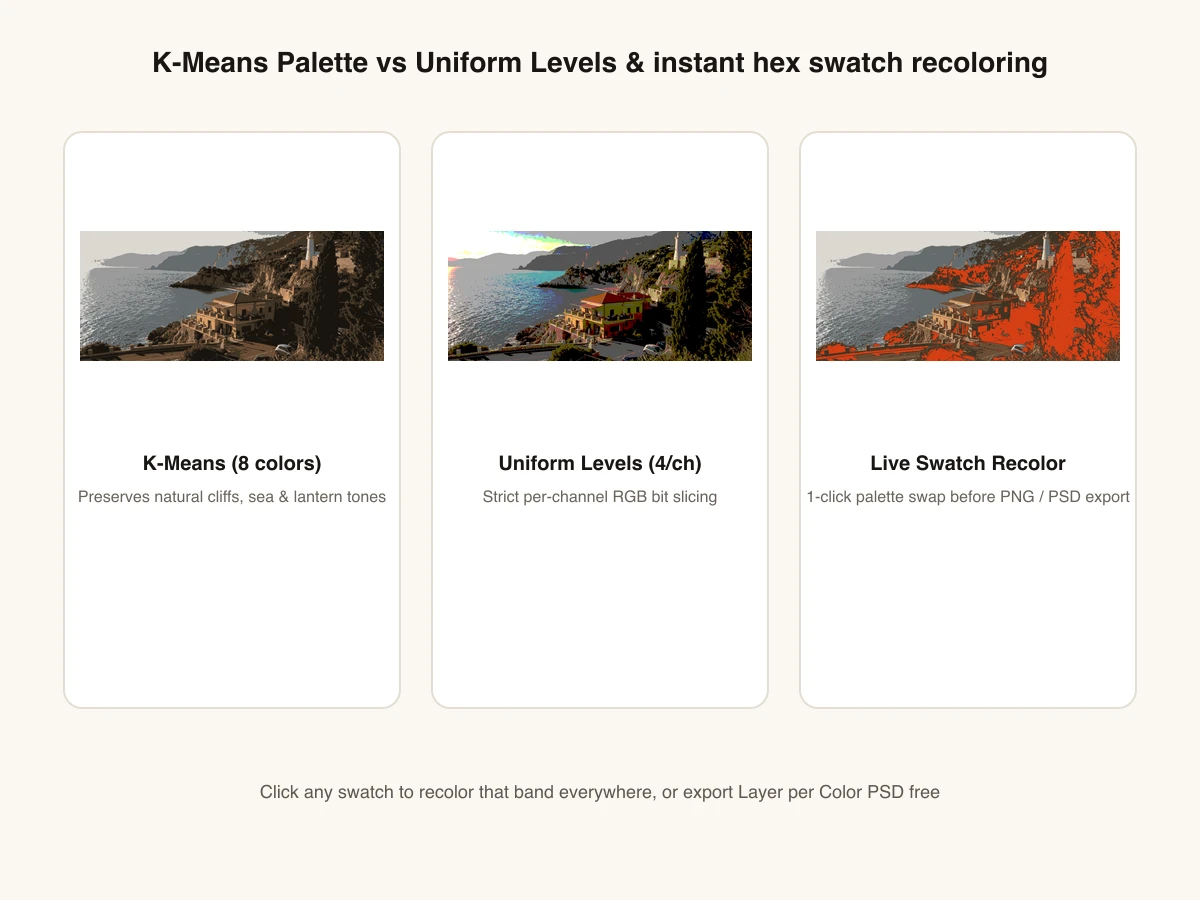
Classic image editors usually posterize photos using Uniform Levels, dividing Red, Green, and Blue channels mechanically into rigid steps. While fast, channel-by-channel slicing frequently produces harsh neon cyan, green, or magenta patches across warm beige skin tones and sunsets. Choosing K-Means Palette instead discovers the actual dominant hues inside your picture first so sky blues, foliage oranges, and shadows stay faithful to the original scene.

Want retro square game tiles or single-color dark stamps instead of smooth poster contours? Switch directly to pixel art instead or silhouette / stencil-style output.

2-16 Color Band Presets

Dial anywhere from bold 2-color screenprints to 16-color travel posters

Start with 8 K-Means color bands so signature blues, oranges, and warm roofs anchor cleanly, then lower the slider step by step until only essential poster planes remain. Raising Pre-blur smoothing from 0 px toward 2-3 px melts grainy texture noise into calm printable shapes.

  • 2-3 colors: bold high-contrast stencils, zine spreads, and 2-ink silkscreens
  • 4-8 colors: versatile travel posters, architectural prints, and flat portraits
  • 9-16 colors: subtle painted smoothing with soft highlight steps
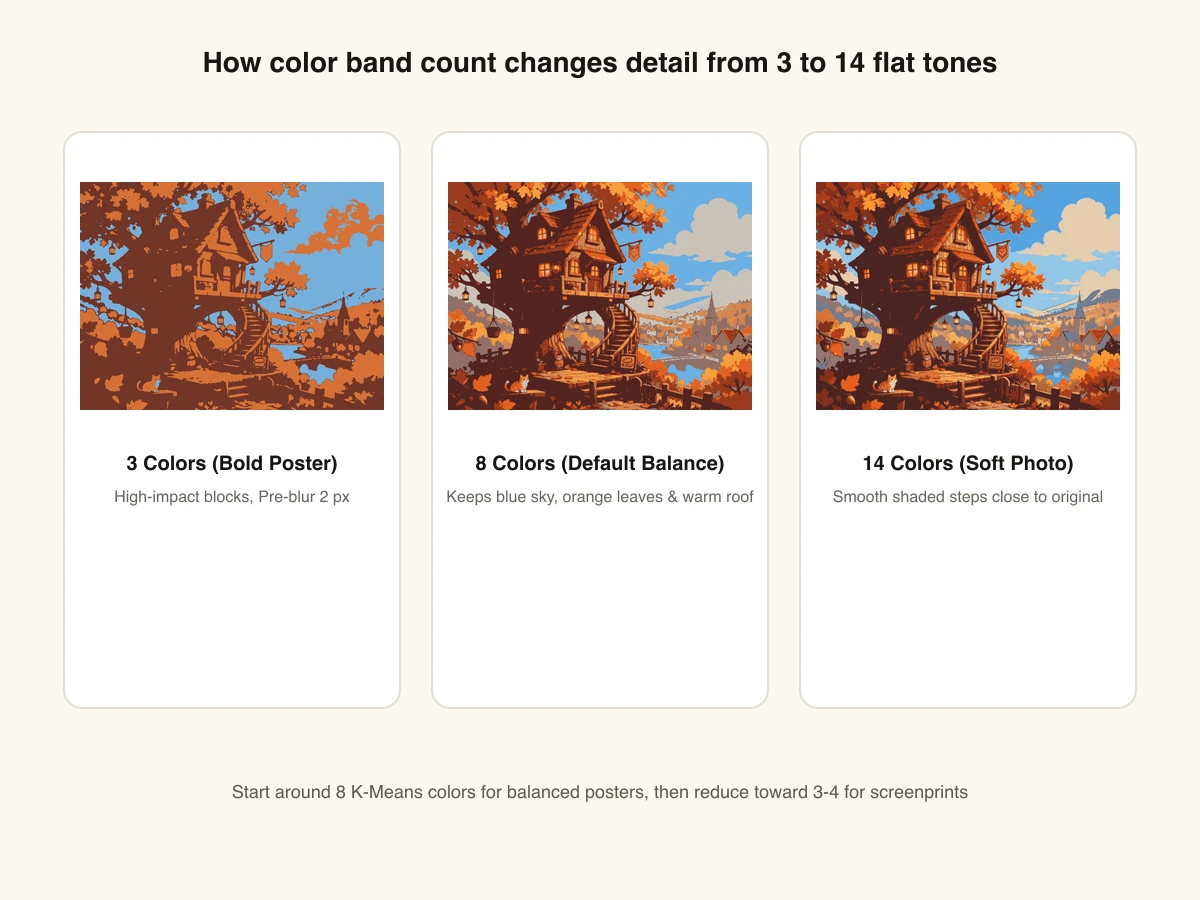
Comparison of cozy-treehouse.jpg posterized at 3 colors, 8 colors default balance, and 14 colors soft transitions
Spot Color Swatches & PSD Plates

Recolor palette swatches live and export Layer per Color PSD free

Screenprinters and Risograph artists need every flat ink band separated onto its own transparent plate instead of flattened on one canvas. Click any active swatch under Edit palette swatches to recolor that hue globally across the canvas, then download a flat PNG or click Layer per Color PSD to write every unique hex band (up to 24 layers) into a real Photoshop file locally.

  • Each color layer exports labeled cleanly (Color 1 #hex, Color 2 #hex) at full dimensions
  • Open exported PSD plates directly inside Photoshop or Photopea, or open the PSD in your browser
  • Click Reset anytime to revert custom palette hex edits without re-uploading
Coastal panorama comparing K-Means 8 colors against Uniform Levels and live red swatch recoloring

Browser Posterize vs Photoshop Posterize adjustment

Compare interactive spot separation in your browser against Photoshop's built-in filter.

CapabilityLayerSplit Posterize ImagePhotoshop Image > Adjustments > Posterize
Color discoveryK-Means scene clustering + Uniform channel levelsFixed per-channel RGB level math only
Spot color separationBuilt-in Layer per Color PSD writes 1 layer per hex inkProduces 1 flat result; requires manual Color Range selections
Live palette swapsClick any swatch to recolor that band everywhere instantlyNeeds separate Gradient Map or Hue/Saturation adjustments
Noise control & privacy0-5 px Pre-blur slider offline in browser, zero installManual Gaussian Blur step inside local desktop license

For halftone screen dots rather than solid ink regions, pair flat plates with halftone screens for print or use split a poster across print sheets to slice oversized banners.

How to posterize an image into flat color bands or PSD layers

  1. Open a sample or upload JPG, PNG, or WebP

    Preview right away on cozy-treehouse.jpg, coastal-pano.jpg, or studio-portrait.jpg, or load photos up to 25 MB / 64 MP.

  2. Choose K-Means Palette or Uniform Levels

    Start around 8 colors on K-Means Palette, drop toward 3-6 bands for bold graphic shapes, and nudge Pre-blur smoothing (1-2 px) if grain speckles appear.

  3. Click swatches to customize brand or ink colors

    Tap any swatch tile under Edit palette swatches to substitute a specific PMS-style ink or warm accent without breaking contours.

  4. Download PNG or Layer per Color PSD

    Save the full-resolution flattened PNG for web mockups, or export Layer per Color PSD locally for screenprinting and illustrator cleanup.

Common posterize mistakes and quick fixes

  • Portraits merging into two blurry shapes

    Dropping below 4 colors flattens nose and cheekbone planes. Start at 8 K-Means colors first, then step downward slowly to 5 or 6 while watching the split divider.

  • Confetti noise islands from JPEG artifacts

    Heavily compressed JPEGs trap micro-artifacts that turn into crisp speckles. Bump Pre-blur smoothing from 0 px to 1 or 2 px before exporting PNG or silkscreen plates.

  • Unwanted neon green or cyan skin fringes

    Switch Quantization method from Uniform Levels back to K-Means Palette so centroids lock onto natural skin and sky tones instead of rigid RGB cube corners.

  • Replacing only one jersey or product hue

    Posterization simplifies the whole scene flatly. When you want to keep subtle photographic shading while shifting just one color, use our color replacer.

When this tool isn't the right one

Match your exact design task to the specialized LayerSplit utility built for it.

If your goal is...Why Posterize differsRecommended tool
Editable headline text & separate foreground objectsPosterize groups by pixel color only, not semantic objects or typographyConvert to a layered PSD or Poster to Layers
Swap one product color while keeping realistic lightingPosterize flattens the entire photo into stepped solidsColor Replacer
Printable 1-bit halftone dots or CMYK rosettesPosterize paints solid fill bands instead of angle-screened dotsHalftone Generator
Crisp single-color craft stencil with island bridge checkPosterize does not highlight enclosed falling paper islandsStencil Maker or Silhouette Maker

Built for printmakers, illustrators, and designers

Silkscreen shops separating artwork into printable ink plates, Risograph publishers testing bold palette swaps, painters mapping value studies, and web designers creating flat graphic posters.

Technical scope & resolution limits

  • Accepts JPG, PNG, and WebP inputs up to 25 MB and 64 megapixels; oversized photos offer one-click browser downscaling to 4,096 px long side.
  • Transparent PNG pixels below 16 alpha stay transparent in exports, while Layer per Color PSD groups opaque quantized pixels into up to 24 color layers.
  • Exports RGB raster PNG and layered pixel PSD files rather than tracing closed SVG Bezier vector paths.

Posterize Image questions and answers

What does it mean to posterize an image?

Posterizing compresses smooth camera tonal gradients into a limited set of flat, distinct color bands (2 to 16 tones here), recreating the crisp layered look of silkscreen posters while keeping subject boundaries sharp.

How many color bands should I use when starting?

Use 2-3 colors for bold screenprints, 4-8 colors (starting at 8) for recognizable posters and portraits, and 9-16 colors for gentle painted smoothing.

Are both PNG download and Layer per Color PSD free?

Yes. Both full-resolution flat PNG export and browser-packed Layer per Color PSD export run locally inside your browser worker free of charge, with no watermarks and no sign-in. Only AI object-and-text splitting pages such as Poster to Layers use LayerSplit credits.

Do my uploaded photos get sent to any remote server?

No. Image decoding, K-Means clustering, Pre-blur smoothing, swatch remapping, and PSD binary assembly execute strictly inside your browser tab on your device.

What file formats are supported for input and download?

Open any JPG, PNG, or WebP up to 25 MB / 64 MP, and export either a flattened RGBA PNG or a multi-layer PSD file.

How are posterize, threshold, and duotone effects different?

Posterize groups an image into 2-16 balanced colors; Threshold reduces brightness strictly to two values (try Stencil Maker or Silhouette Maker); Duotone maps shadows and highlights onto two custom ink tones across smooth tones.

Can I posterize or recolor just one item instead of simplifying the whole photo?

To keep real photographic textures intact and shift just one hue, switch to Color Replacer. If you need movable isolated object layers instead, run Image to PSD.

Why does my posterized image show jagged speckled confetti or noticeable color bands?

Clean stepped bands between flat color zones are the core goal of posterization. Tiny speckled dots usually come from camera ISO noise or JPEG compression - increase Pre-blur smoothing to 1-2 px to clear them cleanly.

Advanced: How do Layer per Color PSD and Pre-blur work on desktop and mobile phones?

Layer per Color groups pixels strictly by final quantized hex (up to 24 layers labeled Color 1 #hex), while Pre-blur runs a local box filter before K-Means assignment. On phones, preview, swatch overrides, and Download PNG work directly in responsive mobile drawers.

Need AI object & typography layers alongside separated colors?

Send finished artwork to Poster to Layers to isolate characters, lettering, and clean reconstructed backdrops into editable PSD groups.

More browser color separation and print utilities