

LayerSplit Chrome Extension: Split Any Image into Layers in Chrome
Right-click an image on any web page and the side panel splits it into named, transparent layers with the background filled in. Copy a layer or download a layered PSD without leaving the tab.
- Chrome 116 or later
- Side panel
- Right-click any image
Free to install. Previews cost 0 credits; splitting uses your LayerSplit credits.
Step-by-step guide: split an image in Chrome
Six steps from the store to a layered PSD. Each one shows the real extension.
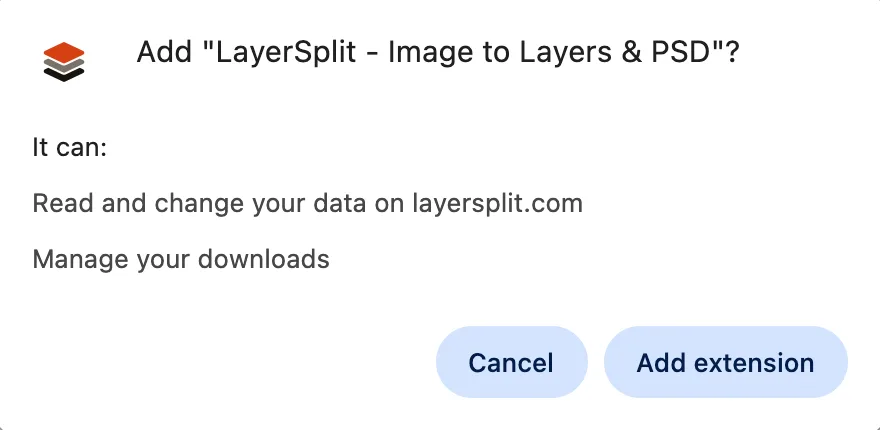
Step 1: Add LayerSplit from the Chrome Web Store
Open the LayerSplit listing and click Add to Chrome. Chrome asks you to confirm: the extension reads and changes data on layersplit.com so it can share your account, and it manages downloads so it can save your files. It asks for nothing else at install.

Step 2: Pin it to the toolbar
Chrome keeps new extensions in the puzzle-piece menu. Pin LayerSplit there and its button stays in the toolbar, one click away from the side panel.
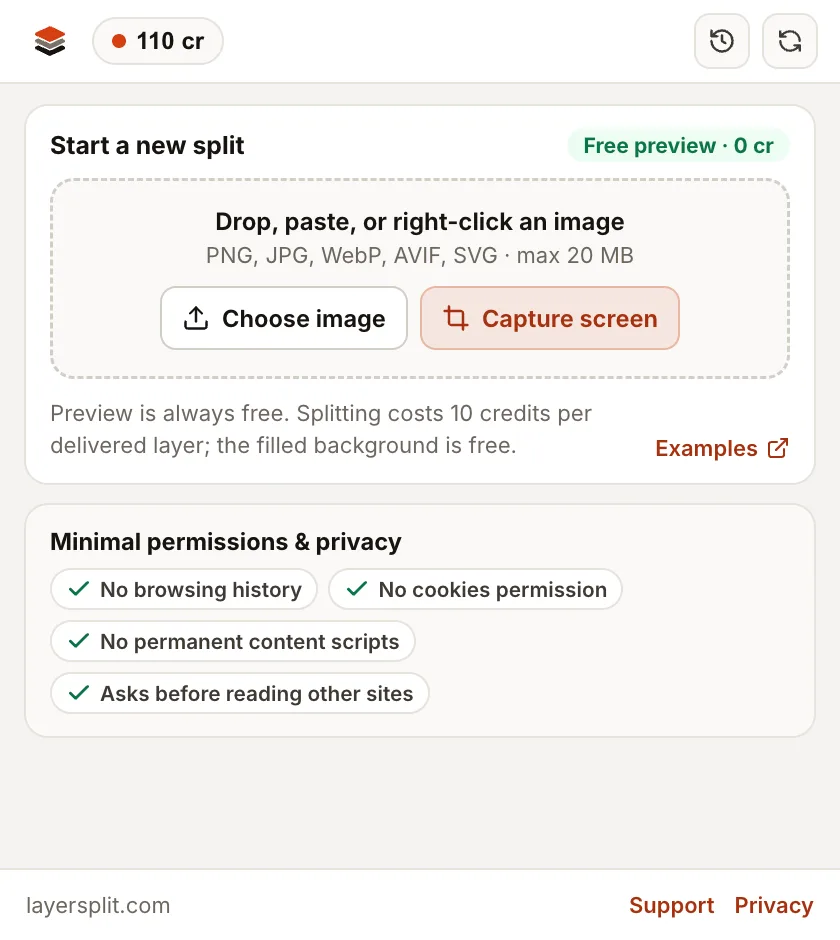
Step 3: Open the side panel
Click the LayerSplit button, or press Alt+L, and the panel opens beside the page you are on. You can also drop, paste or choose an image file here, or capture the visible tab.
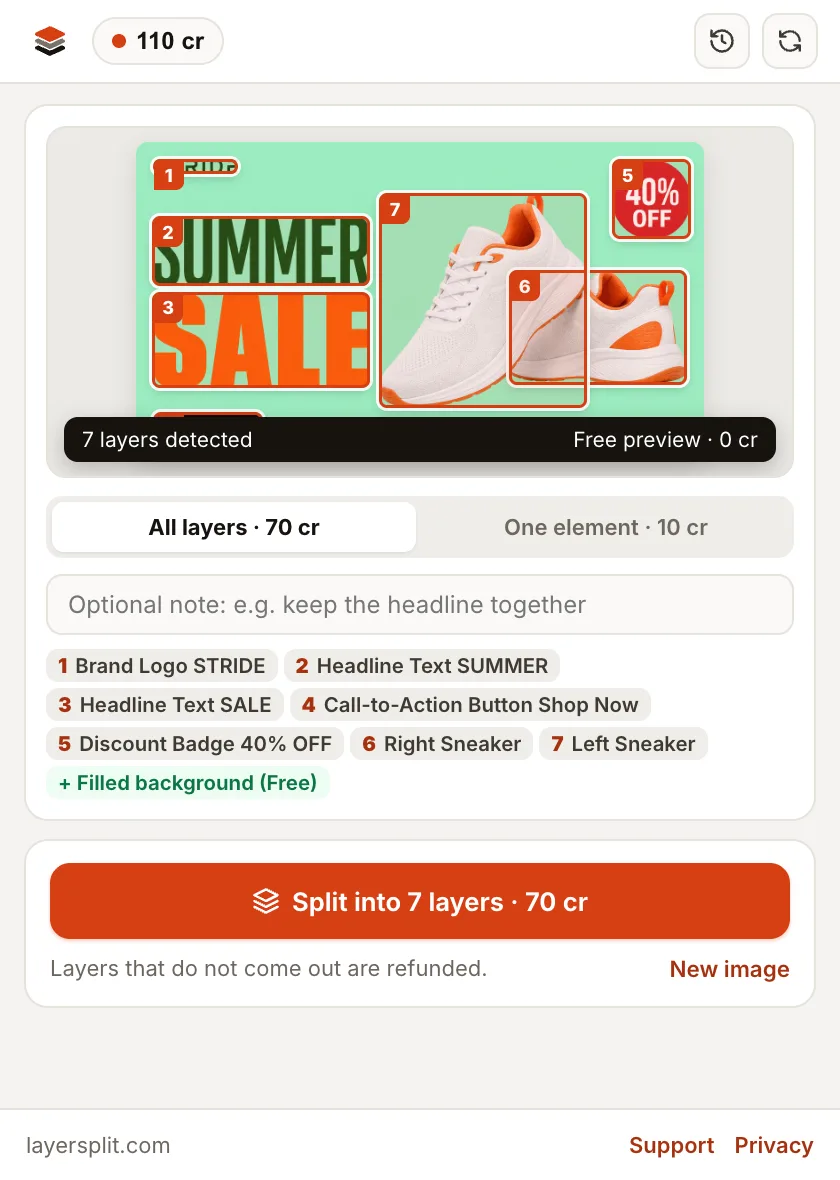
Step 4: Right-click an image and read the free preview
On any page, right-click a picture and choose Split into layers with LayerSplit. The panel finds every layer, draws a numbered box over each and shows the exact cost before you spend anything. Pick All layers or One element, and add an optional note. The preview is free and needs no sign-in.
Step 5: Sign in when you decide to split
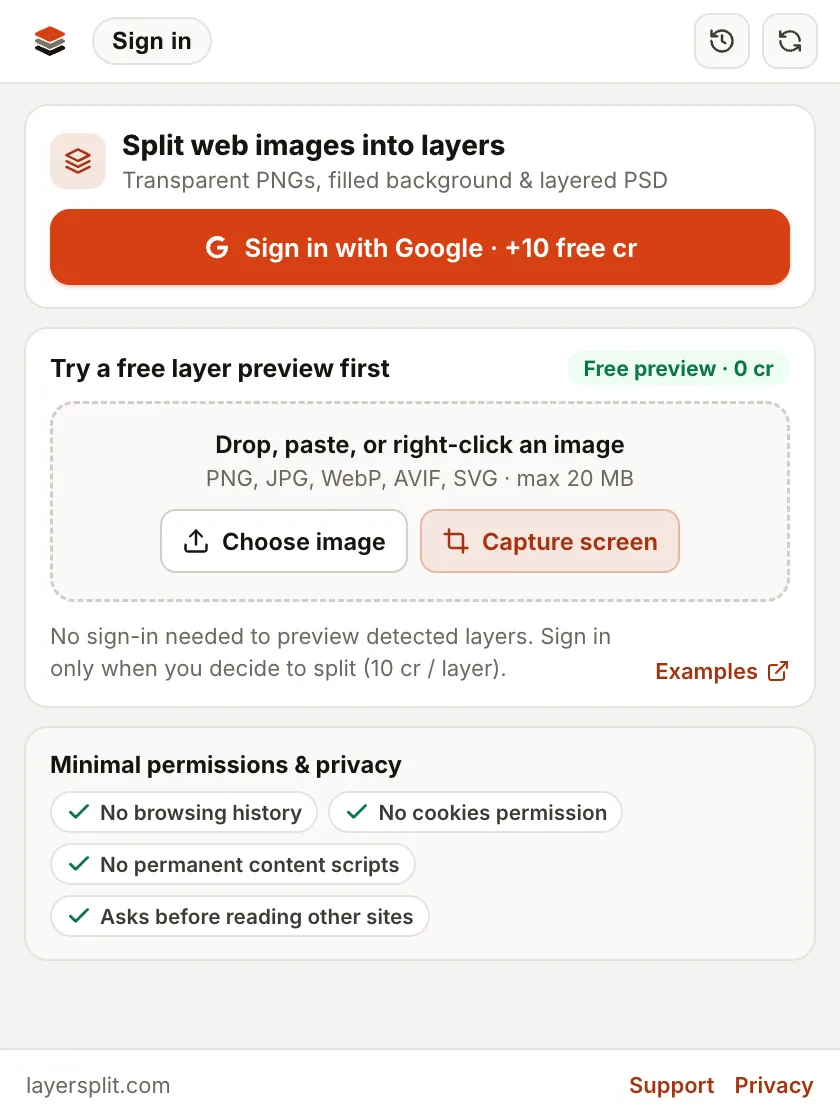
Splitting uses credits, so it needs a LayerSplit account. Click Sign in, continue with Google on layersplit.com and the panel picks up your session by itself. The extension shares the account and the credits of the website, and a first Google sign-in adds 10 free credits.
Step 6: Split, then copy or download the layers
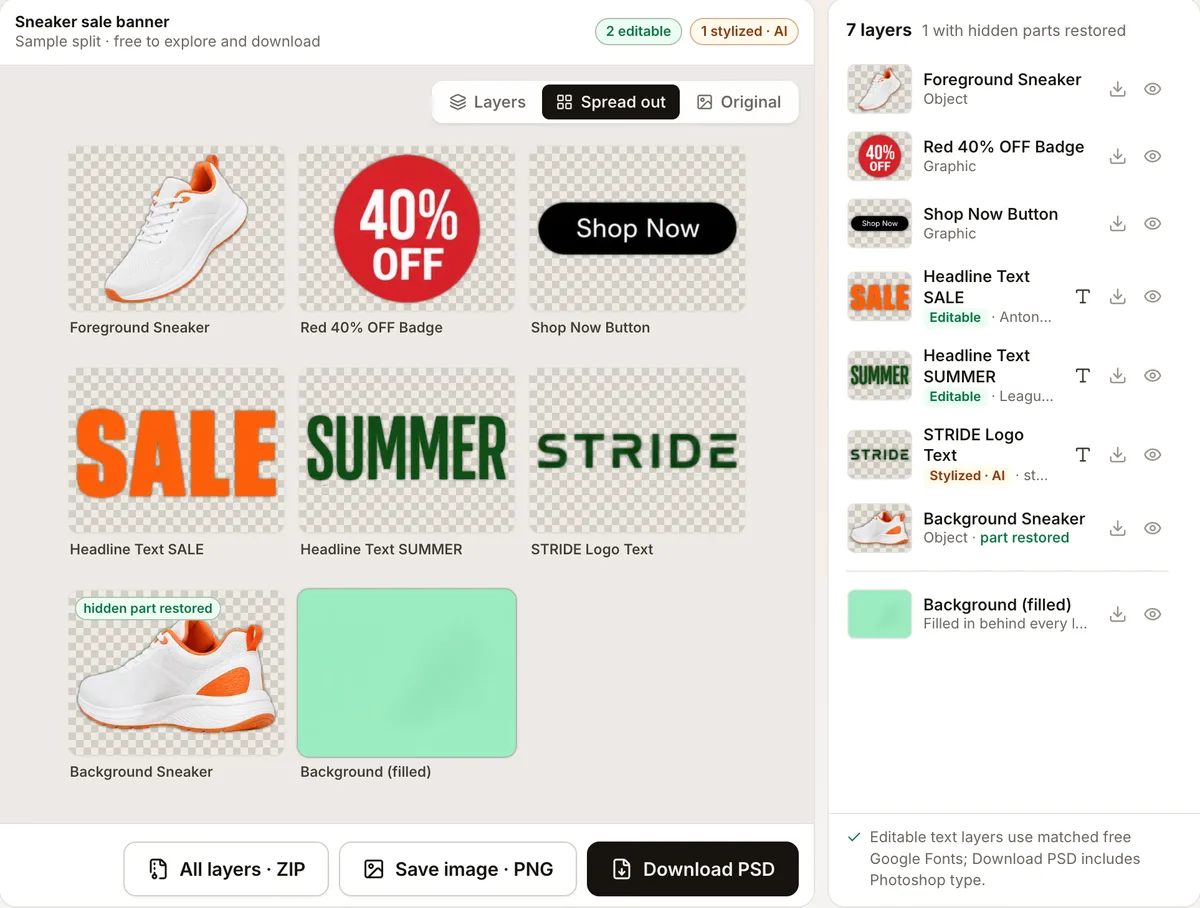
Press Split: All layers costs 10 credits for each layer delivered, One element costs 10 credits flat, and the filled background is free. When it finishes, hide or show a layer, copy a transparent PNG to paste into Figma, Canva or Photoshop, or download a layered PSD, a ZIP or single PNGs. The screenshot shows the sneaker example on layersplit.com; the panel lists the same layers with buttons for each.
How the Chrome extension works
Your account, your credits
It reads your layersplit.com session, so there is nothing new to sign up for. The balance in the panel is the balance on the website.
Only the image you choose
It reads the picture you right-click, the file you pick or the area you capture. It does not read your browsing history, and it has no ads or trackers.
Saved like any other split
Each split is stored for 30 days on your account, so you can reopen it from the panel or from My splits and download it again.
What you get in the side panel
Everything stays in one narrow panel next to the page you are reading.
A free preview first
Numbered boxes mark every layer the split would cut, with the exact credit cost, before anything is charged.
All layers or One element
Split everything at 10 credits a layer, or pull out the one thing you name for 10 credits flat. An optional note guides what stays together.
Show, hide and copy
Turn layers on and off to see the filled background behind them, then copy any transparent PNG straight onto your clipboard.
PSD, ZIP or single PNGs
Download a layered PSD with Photoshop type layers where the text could be matched, a ZIP of every layer with its layer list, or one PNG at a time.
Capture screen
When a page blocks right-click or hides the image behind an overlay, capture the visible tab, crop it in the panel and preview that.
Recent splits
Your last 30 days of splits are one click away, each with a button to download its PSD again.
Requirements
What you need before the first split.
| What you need | |
|---|---|
| Browser | Google Chrome 116 or later, which has the side panel the extension uses. |
| Account | None to preview. A LayerSplit account to split, with Google sign-in or email. |
| Credits | 10 credits for each layer delivered, 10 for One element, nothing for the filled background. |
| Images | JPG, PNG or WebP up to 20 MB, from a page, a file or a screen capture. |
Who it is for
Designers, marketers and sellers who find a flat banner, poster or product shot on the web and want its elements as separate layers, without saving the file and uploading it by hand.
When not to use it
- A picture the page draws as a background, canvas or overlay has no right-click item. Use Capture screen, or the web app with the file.
- Splitting needs a signed-in account and credits. Without one you get the free preview only.
- It works on one image at a time, not on a whole page or a folder of files.
- Each layer is redrawn by AI from your image, so small details in fine text, faces or textures can differ from the flat original.
- Busy real-world photos with many overlapping objects split less cleanly than designed images.
LayerSplit Chrome extension: questions and answers
Is the LayerSplit Chrome extension free?
Installing it is free and so is every layer preview. Splitting uses the credits of your LayerSplit account: 10 credits for each layer delivered, or 10 flat for One element, and the filled background never costs anything. A first Google sign-in gives you 10 free credits.
Does the right-click item appear on every image?
Only on real image elements. A picture a site draws as a CSS background, on a canvas or under an overlay shows the page's own menu instead. In that case open the side panel, choose Capture screen (or press Alt+Shift+L) and crop the area, or save the image and pick the file.
Do I need to sign in to preview layers?
No. The preview with its numbered boxes and its price works without an account. You sign in only when you decide to split.
What if a website blocks the image?
Some hosts refuse to hand the image to an extension. The panel then offers Allow site access and retry, which asks Chrome for permission once and can be revoked in Chrome's settings, or Capture visible screen and crop, which needs no extra permission.
Does it use the same account and credits as the website?
Yes. The panel reads your existing layersplit.com session, shows your balance and sends the same split you would start there. Your splits appear in My splits on the website and in Recent splits in the panel.
Is it available for Edge and Firefox?
The Chrome Web Store listing is live. The browser extension page shows which other stores have a listing, the permissions and how to reach support.
Which permissions does it ask for, and why?
A side panel, a right-click menu item, local storage for preferences, the active tab only when you press Capture screen, downloads to save your files, and layersplit.com for your account. Access to other sites is requested only when you allow it. The browser extension page lists each one.
How long are my splits kept?
30 days. Reopen any of them from Recent splits in the panel or from My splits on layersplit.com, and download the PSD again. A layer that fails or is not delivered is refunded automatically.
Split your first image from Chrome
Add the extension, right-click an image and read the free preview. 10 free credits come with a first Google sign-in.