
Change Background of Image: AI Scenes, Solid Colors or Your Photo

Drop a product or a portrait into a relit AI scene for 10 credits, or cut out once for 5 credits and test unlimited solid colors and your own backdrops. Samples and every local control are free to try first.

Opening AI studio…

A new background has to change the light, not only the pixels

Pasting a cutout onto a different photo is quick, and it usually looks pasted. The subject still carries the light of the room it was shot in: a window on the left, a cool tint, a soft shadow that no longer touches anything. Viewers cannot name the problem, but they feel it.

AI Scene mode treats the swap as a relighting job. You describe a surface, a light source, and a mood, and the model rebuilds the whole picture around a subject that keeps its shape, colors, and details, with a contact shadow that matches the new light. It costs 10 credits per run and usually takes between half a minute and three minutes, so the studio shows the elapsed time while it works.

When you only need a clean flat backdrop, the cheaper path is better. Solid Color and Upload BG cut the subject out once for 5 credits, then every color, photo, zoom, and download after that runs in your browser at no further cost. Pick the mode by how real the new place has to feel, not by habit.

Three modes, one workbench

Choose between a lit scene, a flat color, or your own photo

The tabs at the top of the right panel switch the mode and show its price. AI Scene starts from four scene presets you can edit, so a first result needs no prompt writing. Solid Color gives eight swatches and a full color picker. Upload BG takes any PNG, JPG, or WebP and lets you zoom in and slide the photo until the framing is right, with a free example photo if you want to see it work first.

  • AI Scene: 10 credits per run, with the scene text editable up to 400 characters
  • Solid Color: 5 credits once, then unlimited colors and PNG, JPG, or WebP export
  • Upload BG: 5 credits once, then unlimited photos with zoom and position controls
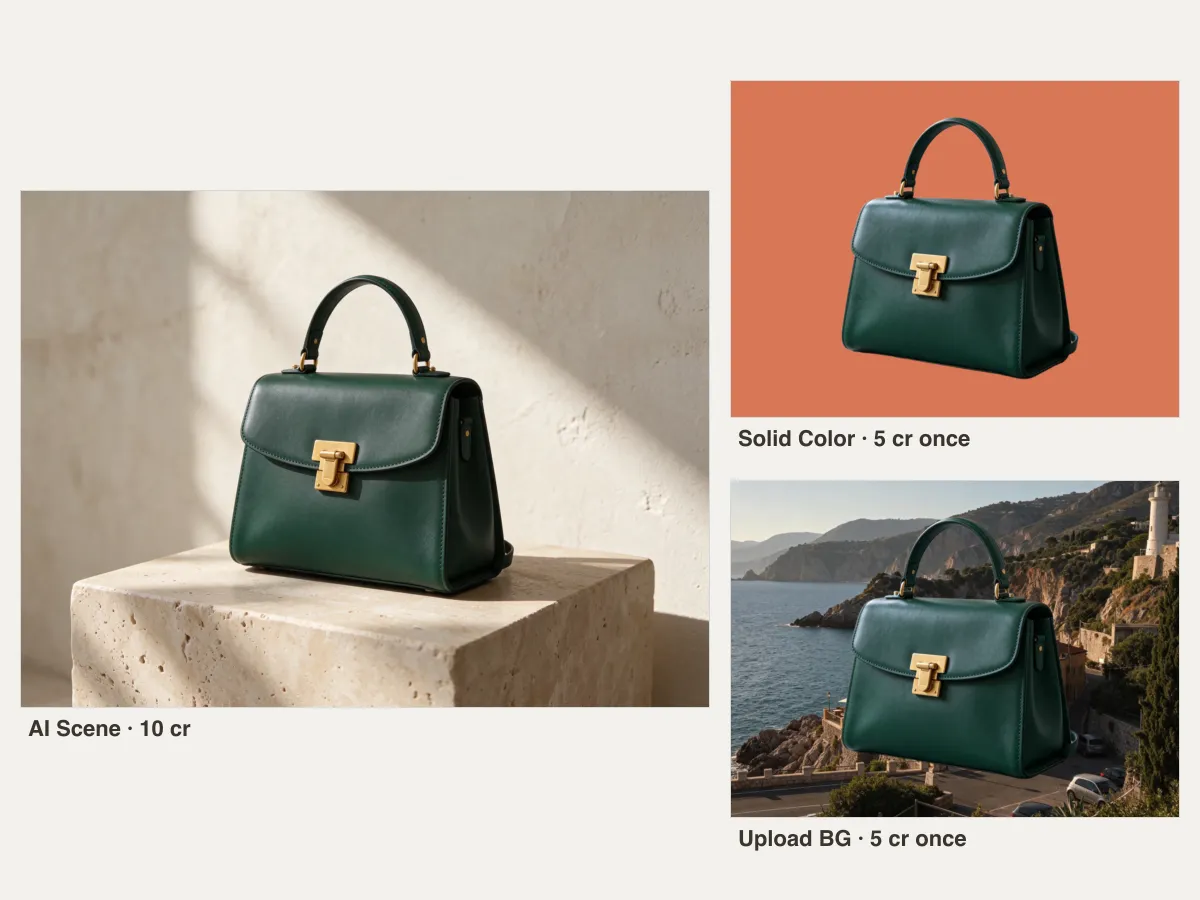
Emerald leather handbag shown on an AI travertine scene, on a terracotta solid color, and over a coastal photo
Real before and after

The subject stays the same while the whole scene changes

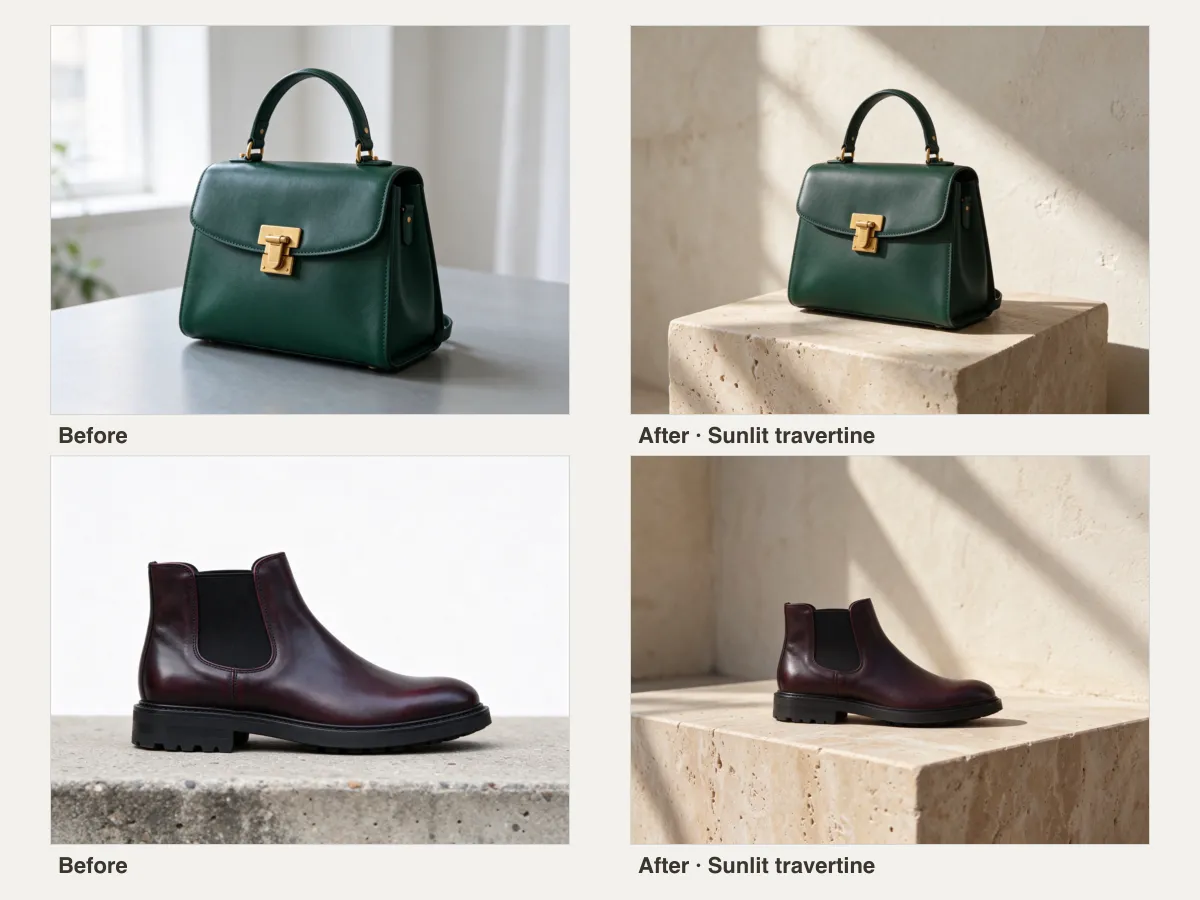
The two samples are real runs, not mock-ups. A deep green handbag moves from a gray desk by a window to a sunlit stone block, and a burgundy boot moves to the same warm setting. The leather grain, the brass clasp, and the stitching come through untouched, and each gets a fresh shadow. Use the split slider on the samples to check the edges yourself.

  • The sample results use the default Sunlit travertine preset
  • Drag the slider all the way to either side to compare edges
  • Your own results can be downloaded as PNG
Before and after of a green handbag and a burgundy boot moved onto a sunlit travertine block

Which mode should you use?

The three modes differ in price, in how much of the picture is rebuilt, and in what you can change afterwards.

ModeCreditsWhat changesBest for
AI Scene10 per runThe whole scene, light, and shadow around the subjectProduct hero shots and portraits that must look photographed in the new place
Solid Color5 onceA flat color or swatch behind a clean cutoutMarketplace listings, ID-style photos, and quick brand-color variants
Upload BG5 onceYour own photo behind a clean cutout, with zoom and positionMatching an existing backdrop, a campaign photo, or a travel picture
Background Splitter10 per layerA subject layer and a rebuilt background layer in a PSDEditing both layers yourself in Photoshop

Switching between Solid Color and Upload BG after a cutout is free. AI Scene is a separate run, so try a flat color first if you are unsure.

How to change the background of an image

  1. Open a sample and try the tabs

    The Emerald Handbag opens on its AI scene. Drag the divider, then click Solid Color or Upload BG to see the same subject on a flat color or a photo. None of this uses credits.

  2. Choose your image and a mode

    PNG, JPG, and WebP files up to 20 MB are accepted. Pick AI Scene and a preset, or Solid Color, or Upload BG. The price of the run is shown on the button before you press it.

  3. Run it and watch the clock

    A cutout usually takes under half a minute. An AI scene usually takes between half a minute and three minutes, and the studio shows the elapsed time. If a run fails, the credits are returned automatically.

  4. Refine and download

    After a cutout, change colors, swap photos, zoom, and re-export as often as you like. An AI scene downloads as a PNG at the size the model returned.

What this does well

Moves products, bags, shoes, and portraits into a believable new place with a matching shadow

Keeps the subject's shape, colors, and fine details in AI Scene mode

Lets you test many colors and photos from a single 5-credit cutout

Refunds a failed run automatically and tells you when the refund has settled

Where to be careful

  • An AI scene is a new image, so tiny printed text on the subject can drift - check it before you publish
  • Solid Color and Upload BG do not relight the subject, so a photo with strong side light can look pasted on a flat backdrop
  • Upload only photos you own or are allowed to use, for the subject and for the background
  • For editable layers use Background Splitter, and for pure white store images use White Background
  • Files that fail validation never reach the model and never cost a credit

Change Background of Image FAQ

How much does it cost to change the background of an image?

AI Scene costs 10 credits per run. Solid Color and Upload BG cost 5 credits once for the cutout, and every swap after that is free. New Google sign-ins start with 10 credits.

How long does an AI scene take?

Usually between half a minute and three minutes, depending on the queue. The studio shows the elapsed time, and a run that fails is refunded automatically.

How do I write a good scene description?

Name a surface, a light source, and a mood, for example a stone block, morning window light, and a calm editorial feel. The presets show the pattern, and you can edit any of them.

Will the product look the same after the AI scene?

The shape, colors, and details are kept, and the background and shadow are rebuilt. Very small printed text can drift, so check labels and logos before you publish.

Can I use my own photo as the background?

Yes. Choose Upload BG, add a PNG, JPG, or WebP, then zoom and position it. The cutout is done once for 5 credits, and you can swap photos for free.

What happens if a run fails?

The credits for the run are returned automatically. If a refund is still being settled, the studio says so instead of claiming it is done.

What is the difference between this and Change Background Color?

Change Background Color only changes the color behind a cutout. This page also offers an AI scene and your own photos in one place.

How long are my uploads kept?

Uploads and finished images are private to your account and are deleted after 30 days.

Need a different kind of background change?

Go to a pure white store canvas, blur the original scene, or keep an alpha PNG for your own layout.

Explore more LayerSplit tools