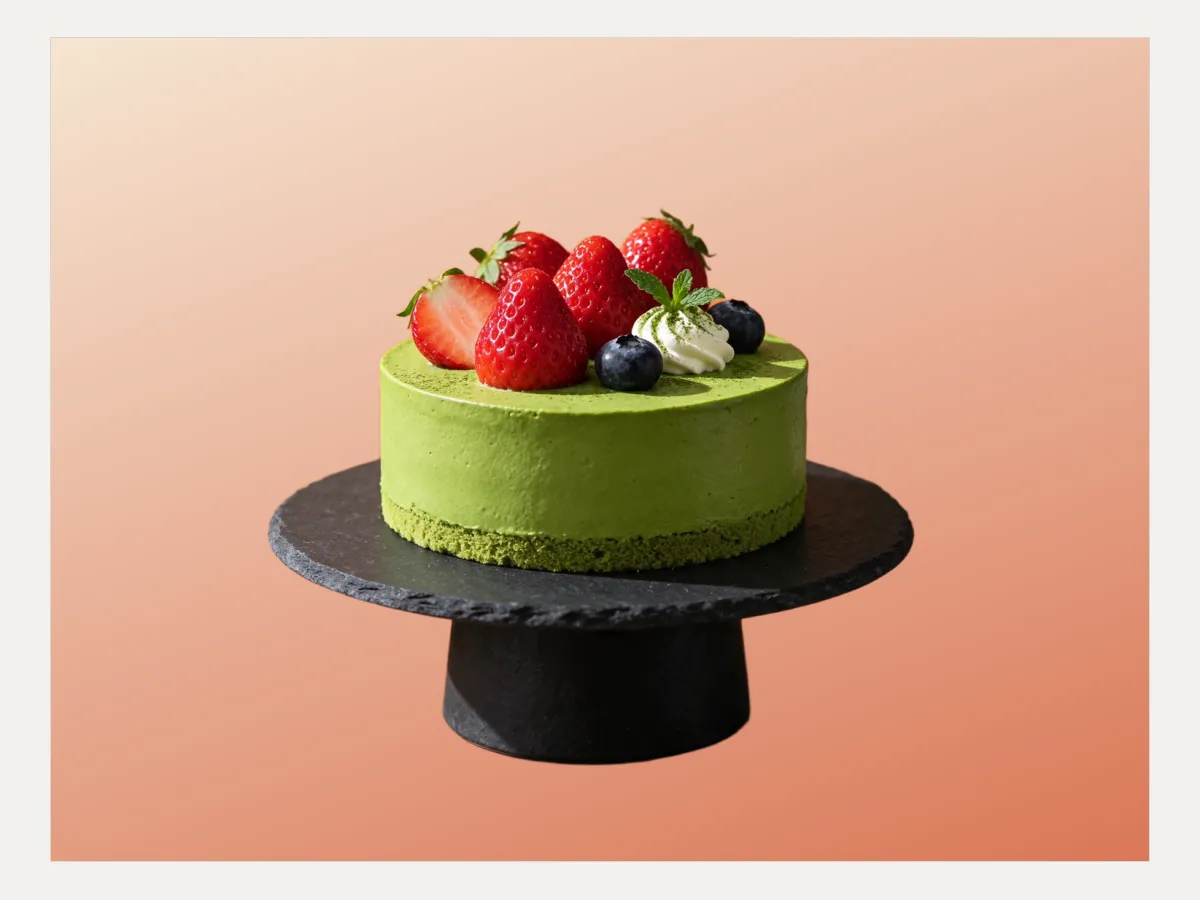

Change Background Color of Any Photo: Try Unlimited Swatches

Cut your subject out once for 5 credits, then test warm neutrals, brand blues, and gradients behind it as long as you like. Every color you try after the cutout runs in your browser and costs nothing.

Your image5 credits · once

Try a sample (0 credits)

Uploads stay private and auto-delete after 30 days. Local refine sliders never re-spend credits.

Matcha Cake · 1792 x 1344
Free sample
Preparing preview...Decoding image locally in your browser.
New background color readyReady

Backdrop color

Local · 0 cr
Background color#F6E5D2
Export format
5 credits per upload10 free on Google sign-up

Samples and all sliders on this panel run locally at 0 extra credits.

Need a clean marketplace-ready pure white canvas instead?Try White Background

Pay for the cutout once, then treat color as a free variable

Picking a background color is a design decision, and design decisions take several tries. A pale apricot might flatter a green cake but fade a beige jacket. A brand blue might carry a hero banner and swallow a navy product. If every attempt had to run a new AI job, you would stop experimenting after the second one.

This tool separates the two steps. The AI model produces a clean alpha matte of your subject for 5 credits. From then on the studio composites that matte over whatever fill you choose, entirely in your browser: a swatch, a HEX value you type, or a two-color gradient at any angle. Switching from apricot to charcoal is instant, and you can export each version as its own file.

Because the fill sits underneath a soft alpha edge instead of replacing pixels by color match, the transition around hair, fur, and curved edges blends into the new color rather than leaving the old backdrop as a rim.

Swatches and exact HEX values

Start from a calm palette, then match your brand to the digit

Eight curated swatches cover the colors people reach for most: warm apricot, passport blue, terracotta, charcoal, sage, lavender, butter, and rose. The round picker beside them opens the full color chooser, so a brand color from a style guide can be dropped in exactly. The chosen HEX value is always shown next to the label, which makes it easy to repeat the same color across a whole set of photos.

  • Warm neutrals make saturated food and leather subjects stand out
  • Dark charcoal gives glossy products a premium look
  • Any six-digit HEX value works through the color picker
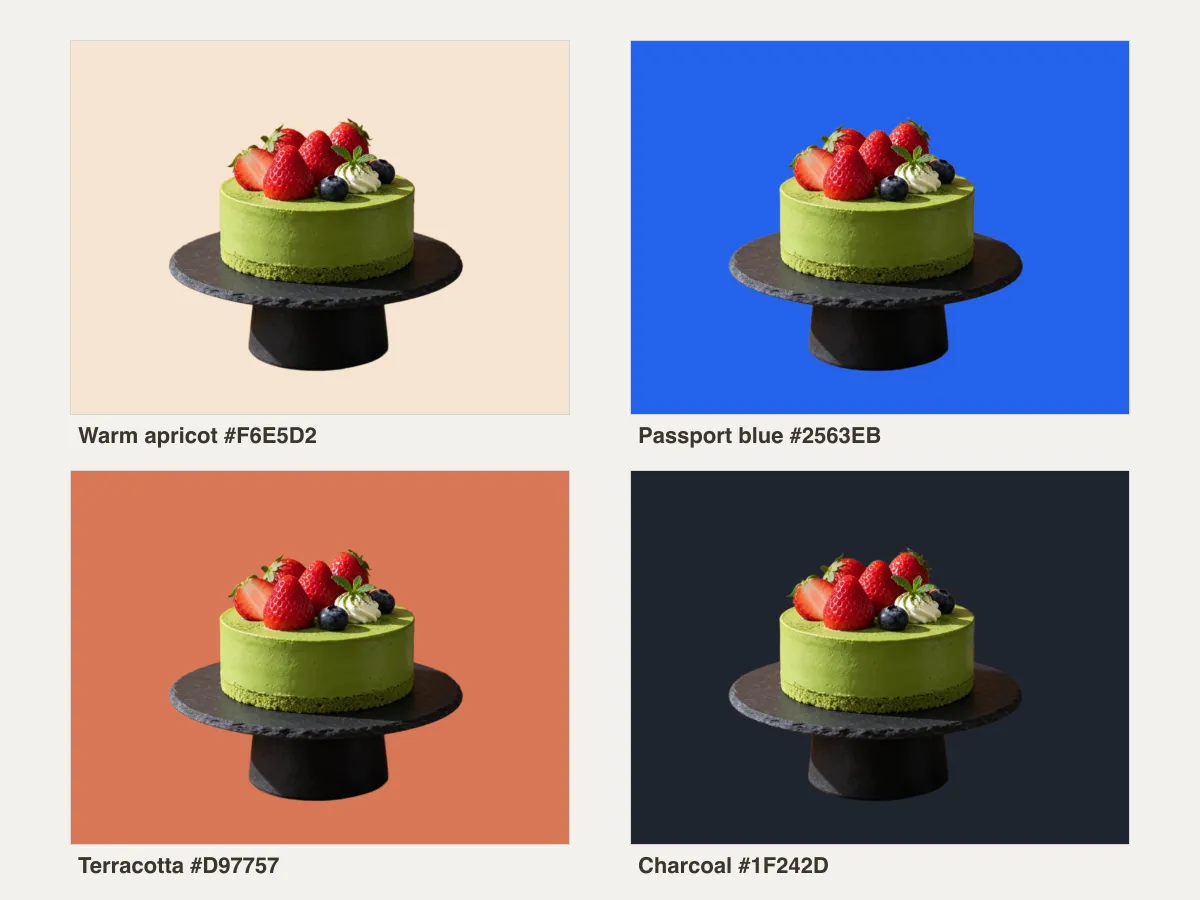
Matcha berry cake shown on apricot, passport blue, terracotta, and charcoal solid backgrounds
Two-color gradients

Add depth with a gradient and rotate it to match the light

Switch on Two-color gradient to blend from your first color into a second one. The angle slider moves in steps of 15 degrees, where 0 points up, 90 points right, and 180 runs top to bottom. A gradient that is lighter at the top and slightly deeper at the bottom reads as a studio sweep, and angling it away from the light on the subject makes the subject look grounded instead of pasted.

  • Pick the end color from the same swatches or the full picker
  • Rotate from 0 to 360 degrees in 15 degree steps
  • Export the gradient as an opaque PNG, JPG, or WebP
Matcha berry cake on a warm apricot to terracotta gradient background at a 160 degree angle

Background colors people use, and where they fit

Start from a color that matches the job, then fine-tune the shade in the picker.

ColorExample HEXWorks well forWatch out for
Warm apricot#F6E5D2Food, leather, wooden and brown subjectsBeige or cream subjects can blend in
Passport blue#2563EBID-style photos, headshots, bold social postsCheck your document's own color rules first
Terracotta#D97757Lifestyle shots, warm brand setsRed subjects lose contrast
Charcoal#1F242DGlossy products, watches, audio gearBlack subjects disappear
Sage#D9E6DDSkincare, plants, calm editorial layoutsGreen subjects lose edge definition
Pure white#FFFFFFStore listings, catalogsUse White Background for marketplace sizing and a shadow

Pick a color that sits opposite your subject on the color wheel for contrast, or close to it for a soft, tone-on-tone look.

How to change a photo's background color

  1. Open the sample, then try a color

    The matcha cake starts on warm apricot. Click any swatch or drag the divider to compare against the original photo. This costs no credits.

  2. Upload your own photo

    PNG, JPG, and WebP files up to 20 MB are accepted. The cutout costs 5 credits, and a Google sign-in adds 10 credits if you are new.

  3. Choose a swatch, a HEX value, or a gradient

    Change the color as often as you like. Turn on the gradient to blend into a second color and set the angle.

  4. Pick the file type and download

    PNG keeps the file lossless. JPG is smaller for photos. WebP is the lightest for the web. Each version is a separate download from the same cutout.

What this does well

Replaces a messy backdrop with a clean solid color or gradient behind products, food, and people

Lets you test dozens of colors from a single 5-credit cutout

Keeps hair, fur, and soft edges blended into the new color

Exports an opaque file at the original photo size

What to know before you start

  • A subject close in color to the background you choose will lose its outline - pick a contrasting shade
  • Shadows and reflections that were part of the old backdrop are not carried over, so the subject sits flat on the new color
  • This changes the whole background, not one color inside the subject - use Color Replacer to recolor a sweater or a logo
  • Files that fail validation never reach the model and never cost a credit

Change Background Color FAQ

How many credits does it take to change a background color?

The cutout costs 5 credits per photo. After that, every color, gradient, and export you try is processed in your browser and costs nothing.

Can I use my own brand color?

Yes. Use the round color picker next to the swatches and enter or select your exact HEX value. The value is displayed beside the label so you can reuse it.

How do I make a gradient background?

Turn on Two-color gradient, choose the start and end colors, and set the angle. The preview updates as you move the slider.

Will the new color look natural around hair?

The cutout keeps 256 levels of opacity at the edge, so thin strands blend into the new color. A very fine or translucent edge can still show a faint rim, and the white and dark previews on the transparent maker help you check it.

What is the difference between this and Color Replacer?

This page changes the background behind the subject. Color Replacer changes one color on the subject itself, like a shirt or a logo.

Which format should I export?

JPG is the smallest for photos. PNG is lossless. WebP is the lightest for web pages. All three are opaque on this page, because the background is filled.

What if the cutout fails?

Your 5 credits are returned automatically when the model fails or returns an unreadable file, and the studio shows the refund status.

Can I make a background white for a store listing?

You can pick white here, but White Background also sizes the canvas for marketplaces and adds a contact shadow.

Need more than a color behind the subject?

Keep the full frame with a transparency check, blur the original backdrop, or build a marketplace-ready white canvas.

Explore more LayerSplit tools