

Layer Separation vs Background Removal: Which One Do You Need?
Background removal keeps one subject and drops the rest. Layer separation keeps every element and rebuilds the background. Here is when to use each.

On this page8 sections
Background removal keeps one subject and drops everything else; layer separation keeps every element on its own transparent layer and rebuilds the background behind them.
What does background removal do?
A background remover looks for the main subject of a photo (a person, a product or a pet) and makes everything around it transparent. The output is usually one PNG: the subject, with nothing behind it.
That is right for everyday cut-out jobs: a product photo on a plain white background for a shop listing, a profile picture on a new colour, a sticker for a collage, or a person dropped into a slide. What it does not do is keep anything else. Text, secondary objects and the background are discarded, and nothing behind the subject is rebuilt.
What does layer separation do?
Layer separation treats the picture as a design made of parts. Each element comes back as its own transparent layer: every text block, every object, every badge or button, with a filled background underneath. Stacked back together, the layers look like the original picture; hide or move one, and there is no hole where it was.
The same image, both ways
Here is a real sample split of a square social post, from the drink example page.

What background removal gives you
Background removal returns the main subject alone. Cut the can out of the flat post without rebuilding what sat behind it, and moving or hiding the can leaves an empty hole:
 Single subject cut-out
 Cut out with no fill
What layer separation gives you
Layer separation returns the whole post as seven named parts plus the filled background:

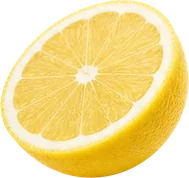
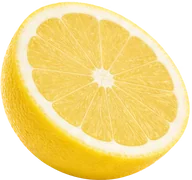
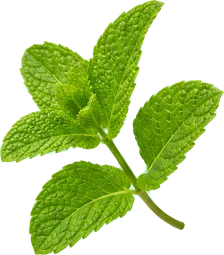
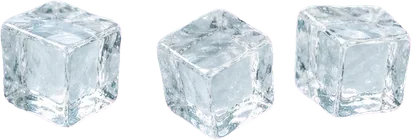


Hide the can layer and the rest of the post stays intact, with the background behind the can filled in:
Original Can layer hidden
Now you can drop a different can into the same spot, move the lemons, or change the headline, without touching anything else.
Background removal vs layer separation, side by side
| Background removal | Layer separation | |
|---|---|---|
| What you get | One cut-out of the main subject | Every element as its own layer, plus a filled background |
| Text and small graphics | Discarded | Kept, each on its own layer |
| The rest of the picture | Discarded | Kept |
| Behind the subject | Nothing; there is no background left | Filled in, so moving or hiding an element leaves no hole |
| Parts hidden behind other objects | Not restored | Restored when an object was partly covered |
| Typical output | One PNG | PNG per layer, a ZIP, or a layered PSD |
| Typical speed | Usually quick | Usually about a minute |
| Best for | Product cut-outs, profile photos, stickers | Editing, rearranging and reusing a finished design |
Which one should you choose?
- You need one subject on white or transparent for a shop listing
- You want a quick cut-out for a portrait, sticker or slide
- You do not need the text, secondary props or old background
- You want to edit a banner, poster or social post you only have flat
- You want to hide one element (such as text) and keep the rest
- Objects overlap and need to come back whole in a layered PSD
For removing text from an image, layer separation also fills the area behind the words once so you can hide the text layer without discarding the rest of the poster.
Can one replace the other?
What to watch for with each
Upload a banner or social post and hide each layer to see what is behind it. Sign in with Google for 10 free credits, enough for One element, and check in daily for more, no card needed. The samples, including this drink post, can be explored and downloaded without an account.




FAQ
What is the difference between removing the background and separating layers?
Background removal keeps one subject and discards everything else, so you get a single cut-out. Layer separation keeps every element as its own layer, text and small graphics included, and fills in the background behind them.
Does background removal keep the text in an image?
Usually not. A remover keeps the main subject, so headlines, prices and buttons are removed with the background. To keep the text as an editable piece, separate the image into layers instead.
What does “Background From Layer” mean in Photoshop?
It is a menu command, Layer > New > Background From Layer, that turns a regular layer into the locked Background layer at the bottom of the stack. It does not remove or create a background; see Adobe’s guide to background and regular layers.
Which is better for product photos?
For a single product on its own, background removal: it is fast and gives you exactly the cut-out a shop listing needs. For a product inside a designed banner or post that you want to edit, layer separation, because it keeps the text, the other elements and a filled background.
Can I get the background without the subject?
With layer separation, yes: the filled background is its own layer, with every element lifted. A background remover only returns the subject, so the background is lost.
Is the background behind the subject real?
No method can recover pixels that were never in the image. In a layer split, each separated element and the filled background behind it are redrawn by AI from your image, so small details can differ slightly. On a plain background like this post’s, the fill is simple; on busy photos it has to invent more, so check it at full size.