Flat Product Banner to Editable PSD: Change Price and Product
Only have a flat JPG of a product banner? Split it into a layered PSD to change the price, move or swap the product and reuse the parts in other sizes.
On this page6 sections
When all you have is a flat JPG or PNG of a product banner, splitting it into a layered PSD puts the headline, price badge, product and filled background on separate layers so you can edit them in Photoshop or Photopea and resize for new formats.
When you only have the flat banner
A client sends last season’s JPG asking for a new price, a designer has left without handing over the PSD, an ad platform only kept the export, or an AI image generator gave you a banner with the wrong price or product. Rebuilding from scratch means hunting down fonts and re-cutting photos, while cutting by hand leaves holes and missing pieces behind overlapping objects.
What a split gives you: the sneaker banner
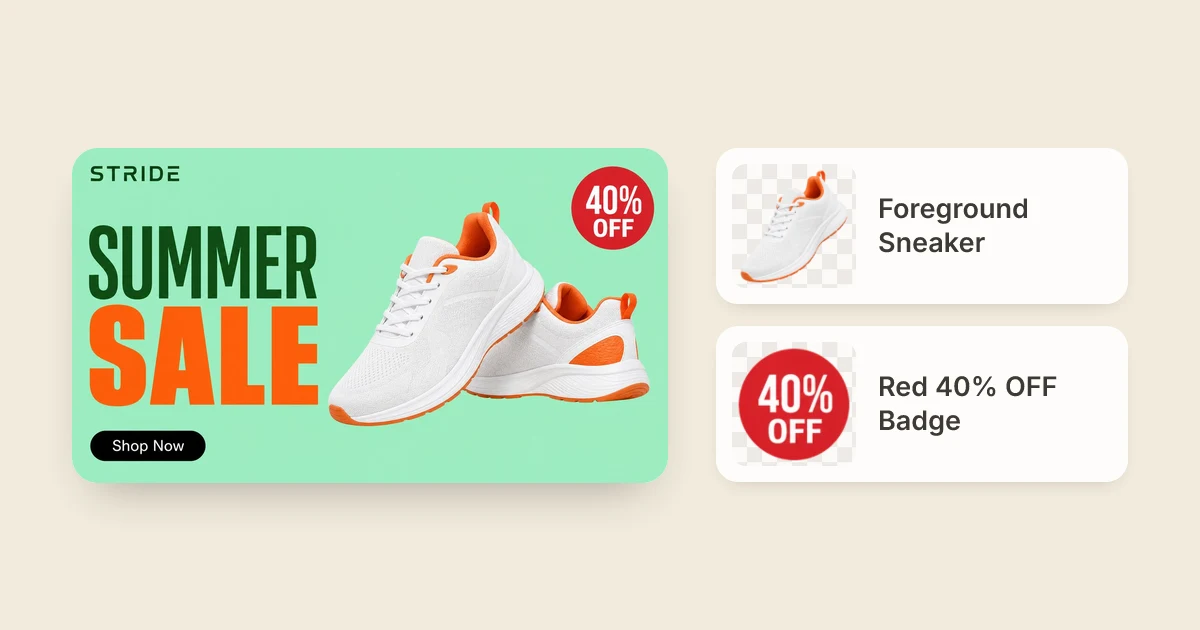
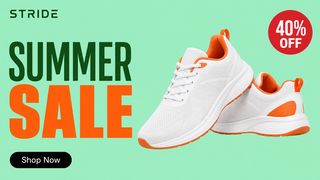
Here is a real example, the sneaker sale banner from our examples:
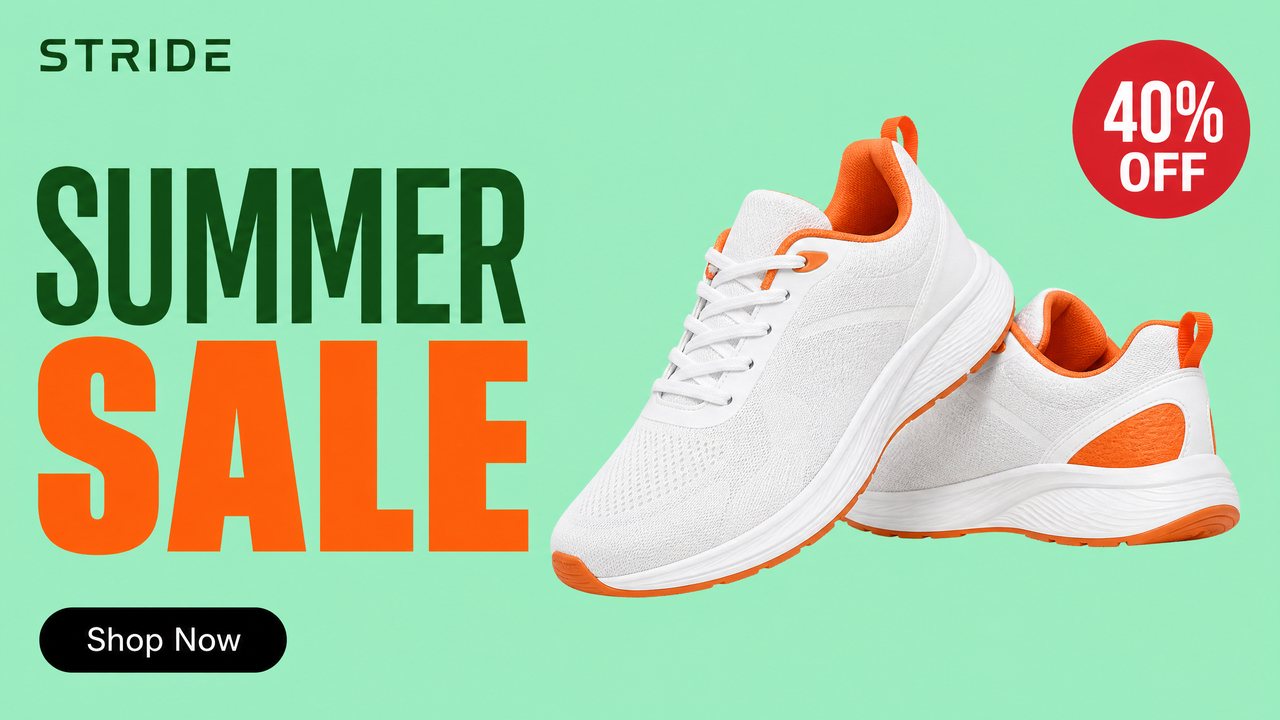
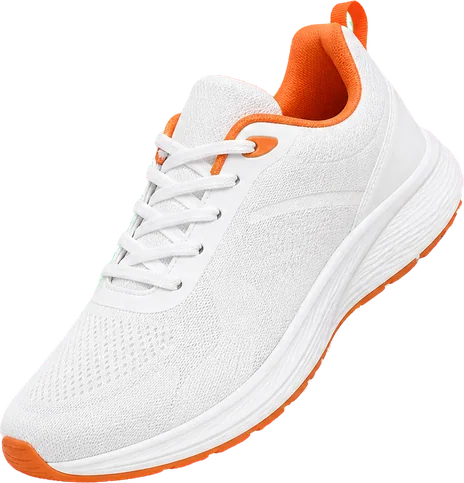
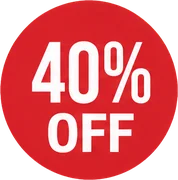
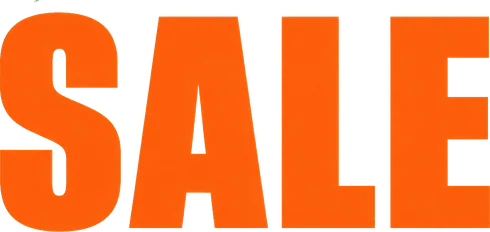
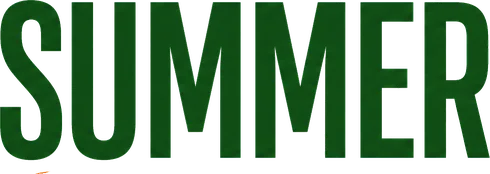
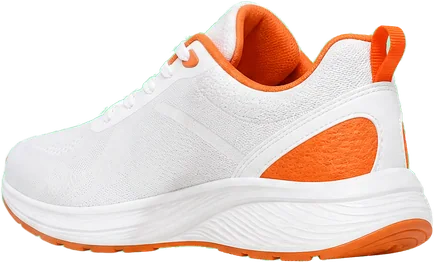
It returned seven named layers over a filled mint background:

Step by step: from flat banner to edited PSD
- Upload the bannerUse the image to PSD page with a PNG, JPG or WebP up to 20 MB (output up to 2,560 px on the long side; larger uploads scale down first).
- Wait for the splitUsually about a minute, up to 2 with many layers, even when objects cover each other like the two sneakers.
- Check layers in browserToggle eye icons to inspect the restored shoe and background behind elements.
- Download the PSDPress Download PSD to export layers with Photoshop type for readable headlines, or save a flat updated PNG in one click after editing text in-browser.
- Open and editOpen in Photoshop or free in Photopea, or inspect first in the free PSD viewer.
Change the price, swap the product, or resize
Honest limits
Only edit banners you have the right to change (your own work, client files or licensed assets)—a competitor’s ad is not a template.
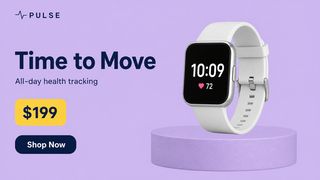
Download the sneaker and smartwatch PSDs from their example pages without an account first, or upload your own banner for 10 free credits on Google sign-in plus a daily check-in (no card needed).
FAQ
Can I convert a JPG banner to a PSD with layers?
Yes, but not by changing the file format: saving a JPG as PSD gives you a single flat layer. To get real layers, the image has to be split so that each element ends up on its own layer, with the background filled in behind them.
How do I change the price on a banner without the original file?
Split the banner into layers, then edit the price badge layer: paint over the old figures in the badge colour and type the new price on top with the Type tool.
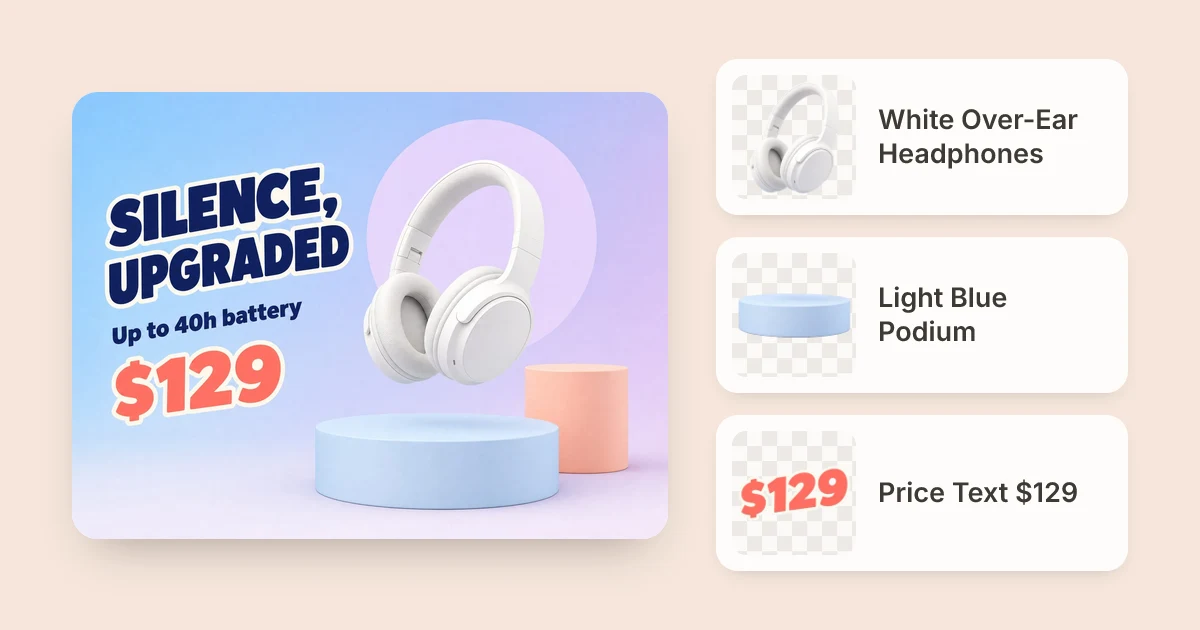
If the price is plain text rather than part of a badge, Download PSD exports it directly as a live Photoshop type layer (like the $129 price on the headphones banner) or lets you rewrite it free in the browser before saving PNG or PSD.
Will the product look the same after splitting?
Each layer is redrawn by AI from your banner, so the overall shape and style match your layout while small details like stitching or small labels can differ slightly. Always inspect the product layer and any AI-completed areas at full size before publishing.
Can I open the PSD without Photoshop?
Yes. Photopea opens layered PSD files free in the browser and lets you edit them, and our free PSD viewer shows every layer without editing. See how to open a PSD file without Photoshop for more options.
What happens to the shadow under the product?
It depends on the shadow. A soft shadow often stays in the background as a faint patch, and a strong cast shadow can stay in the background or come out as its own layer. Either way, if you move the product far from where it stood, paint out the old shadow and add a new one.
Can I resize the banner for Instagram or a story?
Yes: change the canvas size, extend the background, and rearrange the layers for the new shape. Convert the product layer to a Smart Object before scaling it, so repeated resizing does not lose quality.