
How to Convert a PSD File to JPG, With or Without Photoshop
Convert a PSD file to JPG in Photoshop or free in your browser: why transparency turns white, which quality to pick, CMYK files and batch conversion.
On this page6 sections
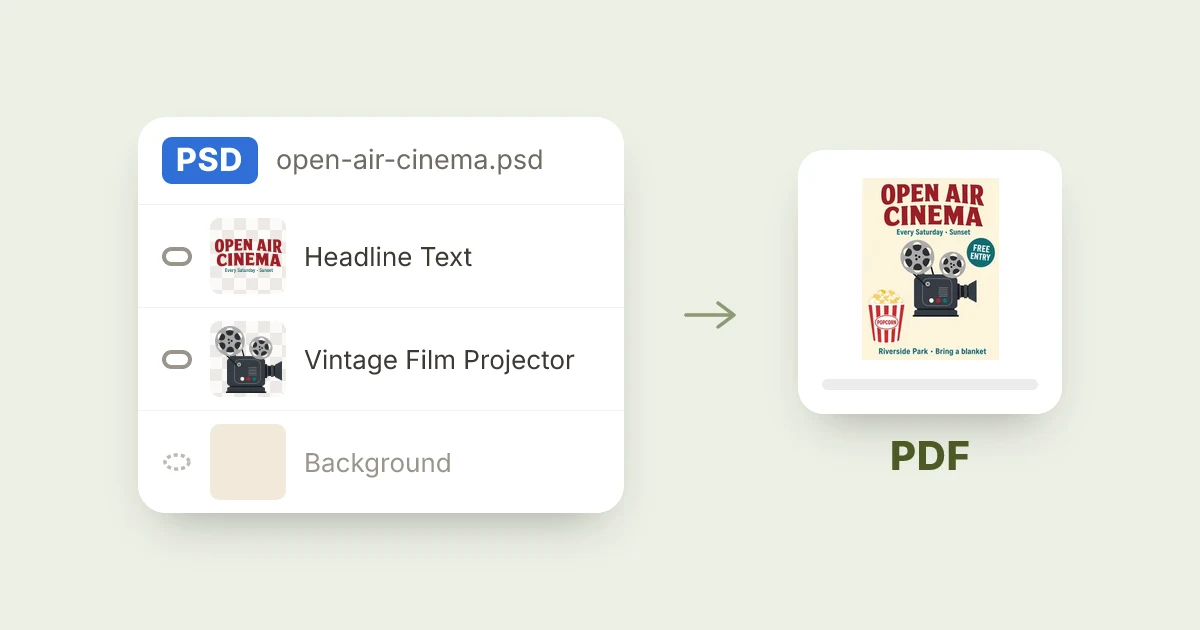
To convert a PSD to JPG in Photoshop, choose File > Export > Export As, set Format to JPG, pick a quality and export. Without Photoshop, a browser converter flattens layers onto a white background at your chosen quality for up to 50 files at once.
Why do transparent areas turn white?
JPG does not support transparency. Every pixel in a JPG holds a solid colour, so any see-through area in the PSD must be filled—white by default in the browser converter, both on the whole image and on layer files.
- Need transparency? Use PNG instead (how to convert PSD to PNG).
- Need another background colour? Place a solid fill layer at the bottom of your PSD before exporting.
What JPG quality should you choose?
JPG uses lossy compression (Adobe format guide): higher compression shrinks the file by discarding detail. Designs with small text, thin lines or flat colour show compression sooner than photos (consider lossless PNG for those), and scaling down to 50% or capping the longest side at 2,048 px often saves more bytes than dropping quality aggressively.
| Quality | Good for | What to expect |
|---|---|---|
| 100 | Proofs, archiving a flat copy | Largest file |
| About 90 | A general default | Hard to tell from the original for most images |
| About 70 | Web pages, listings, email | Smaller; compression can show on sharp edges and small text |
1How to convert a PSD to JPG in Photoshop
What about CMYK PSD files?
Print PSDs are often CMYK, and JPG can hold CMYK, RGB and grayscale (Adobe). For screens, email and the web, use RGB:
2How to convert PSD to JPG without Photoshop
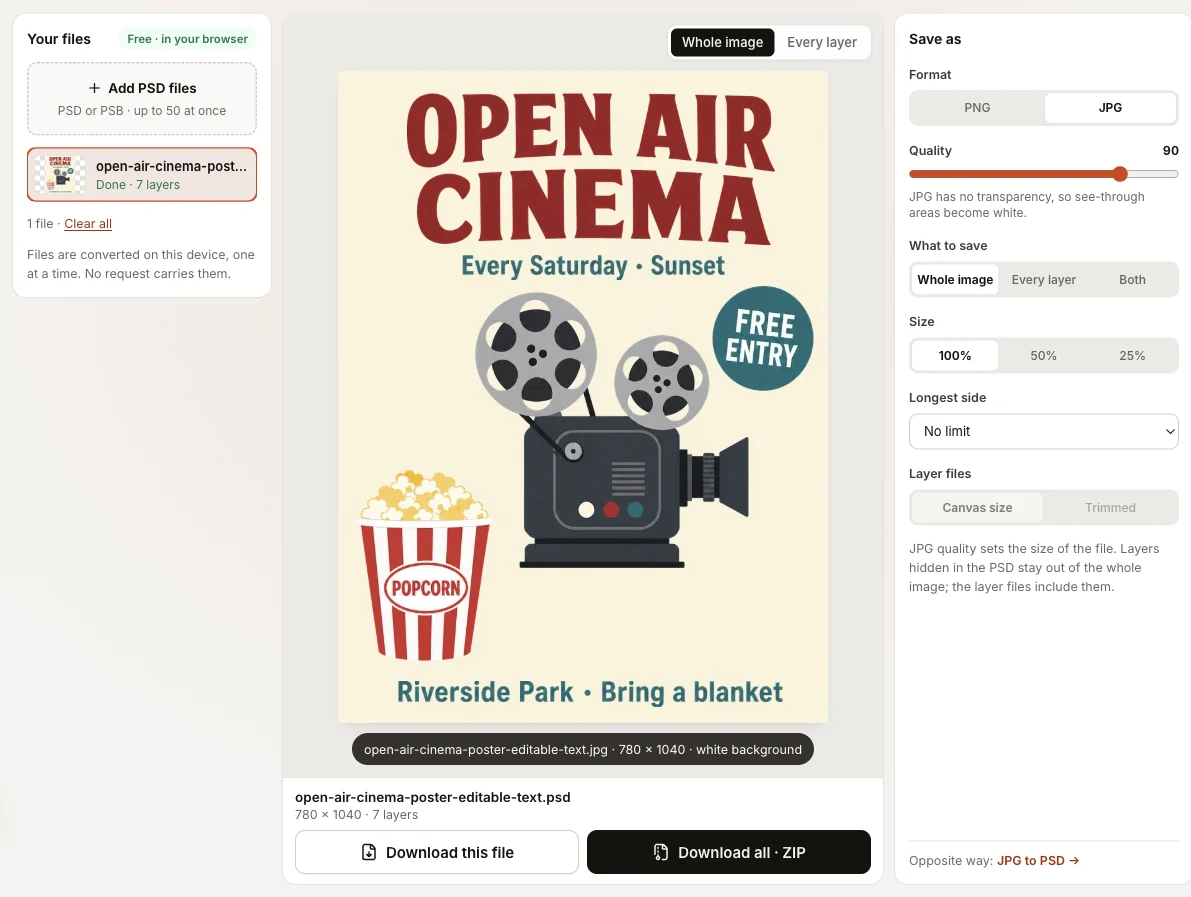
The free PSD to JPG converter runs on your device with no upload and handles up to 50 PSD or PSB files at once (downloading as one JPG or a ZIP with one folder per PSD):
- Drop up to 50 filesAdd PSD or PSB documents; they convert one by one with progress shown.
- Check the white-background previewSee how transparent areas render onto white.
- Set qualityAdjust the quality slider from 50 to 100 (starts at 90).
- Pick mode and sizeChoose Whole image, Every layer or Both (Canvas size or Trimmed), and 100%, 50%, 25% or longest side 4096, 2048 or 1024 px (never upscales beyond the PSD).
- DownloadSave a single JPG or click “Download all” for one ZIP.
Two other free routes work without Photoshop: macOS Preview exports the stored composite via File > Export (Apple guide), though it cannot hide layers first; Photopea opens PSD layers in the browser and exports JPG via File > Export As. See how to open a PSD without Photoshop for more options.
Convert up to 50 PSD or PSB files at once, choose quality and size, and export Whole image, Every layer or Both without an account or upload. You can also inspect layers first in PSD Viewer, or go the other direction with JPG to PSD.
FAQ
How do I convert a PSD file to JPG?
In Photoshop, choose File > Export > Export As, set the format to JPG, choose a quality and export. Without Photoshop, drop the file into a browser-based PSD to JPG converter, set the quality and download the JPG.
Why did the transparent parts of my PSD turn white?
JPG has no transparency, so every see-through pixel must get a solid colour, and white is the usual choice. If you need the transparency, save a PNG instead; if you need another colour, add a fill layer at the bottom of the PSD before exporting.
What quality should I use for a JPG?
Around 90 is a good default: most people cannot tell it from the original, and the file stays reasonably small. Go down to about 70 for web pages and email, and up to 100 for proofs.
Can I convert a PSD to JPG without Photoshop?
Yes. A browser-based converter does it on your device without installing anything. On a Mac, Preview can also export a PSD’s flattened picture as a JPEG, and Photopea can open and export it in the browser.
Can I save each layer of a PSD as a JPG?
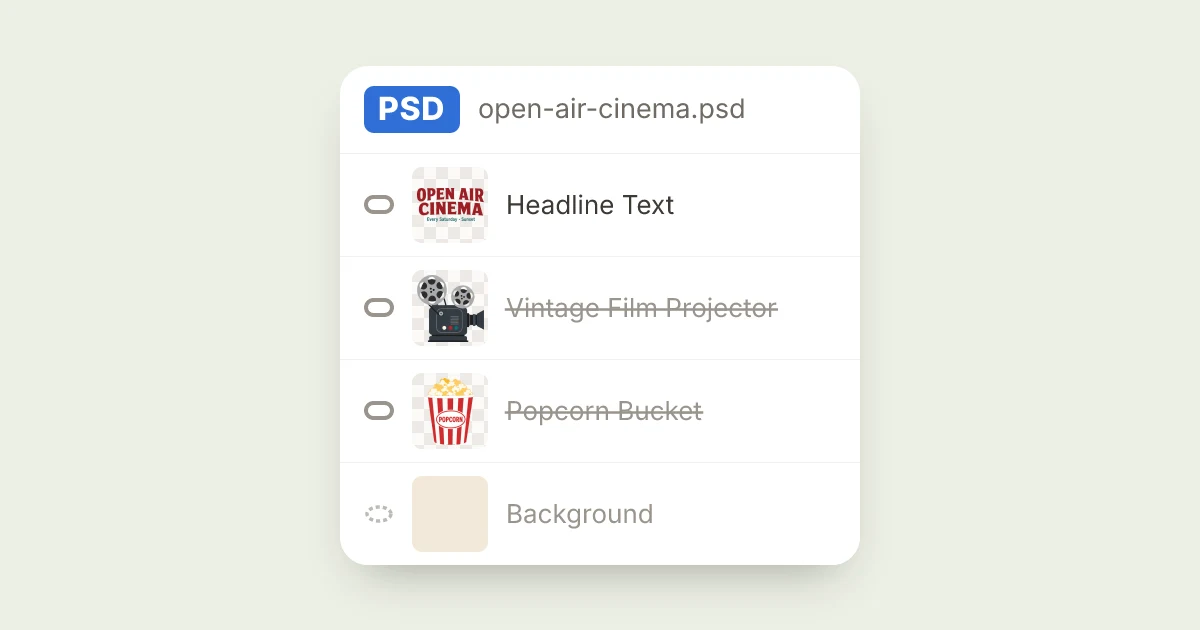
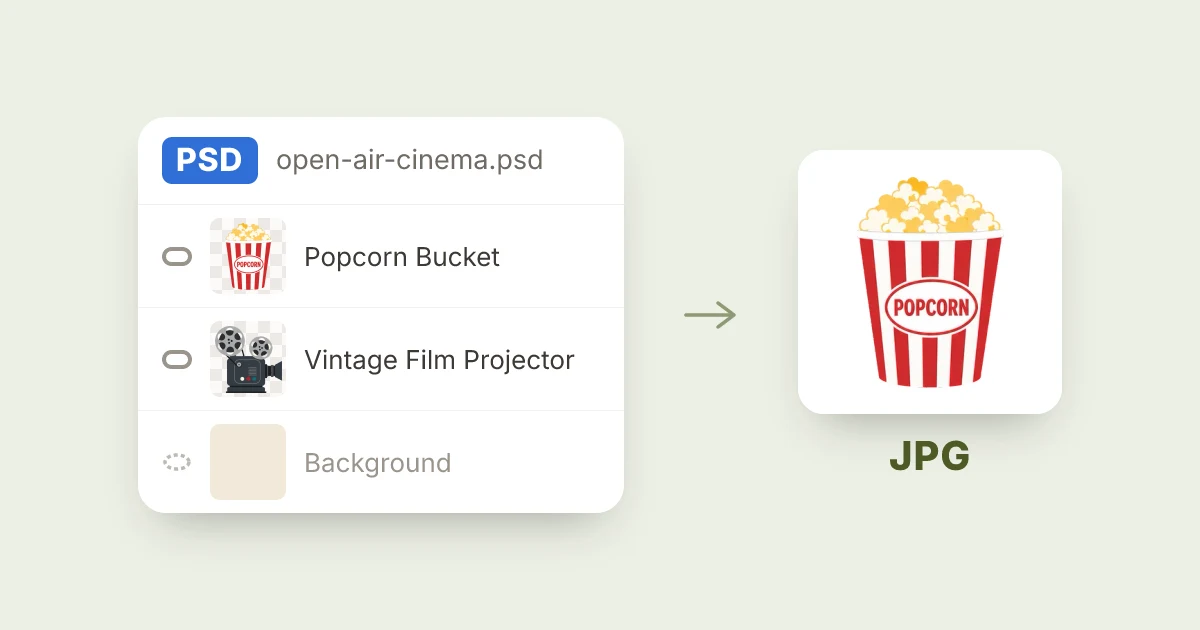
Yes. In Photoshop, use File > Export > Layers to Files with JPEG as the file type. In the browser converter, choose Every layer or Both; each layer becomes its own JPG on a white background, canvas size or trimmed.
Will the JPG look the same as in Photoshop?
From Photoshop’s own export, yes, apart from compression. Other programs may skip some features: the browser converter, for example, does not draw layer effects or adjustment layers, and saves RGB without a colour profile.