
Convert PSD to PNG and Keep Transparency: Photoshop and Browser
Convert a PSD to PNG with a transparent background: whole image, every layer or both, in Photoshop or free in your browser, with the settings that matter.
On this page7 sections
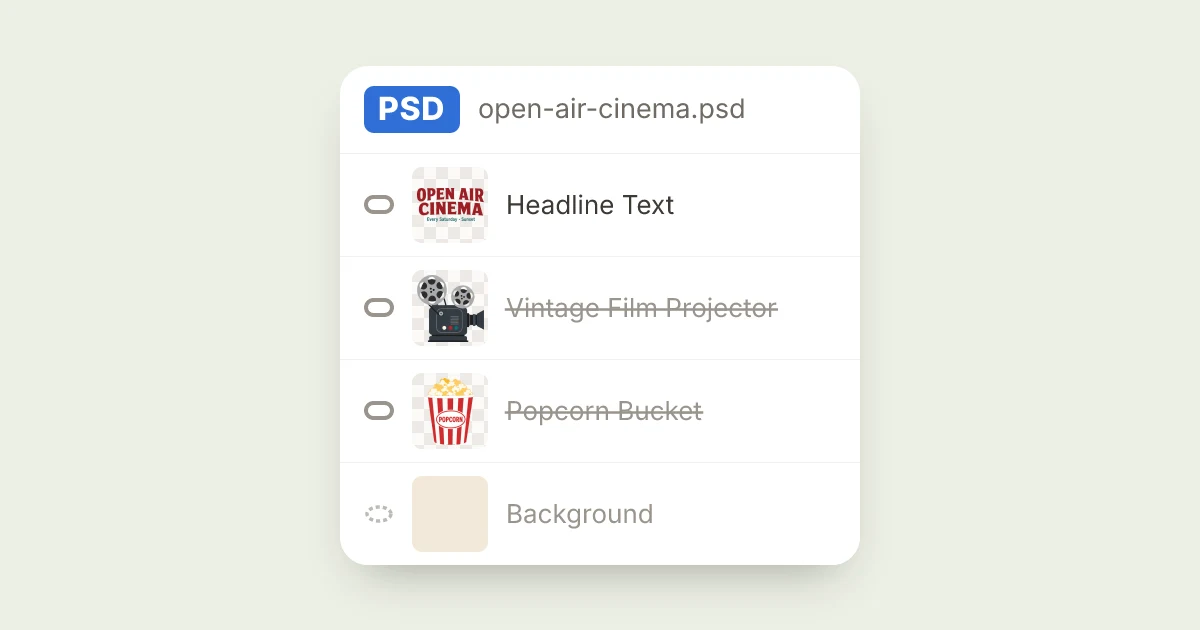
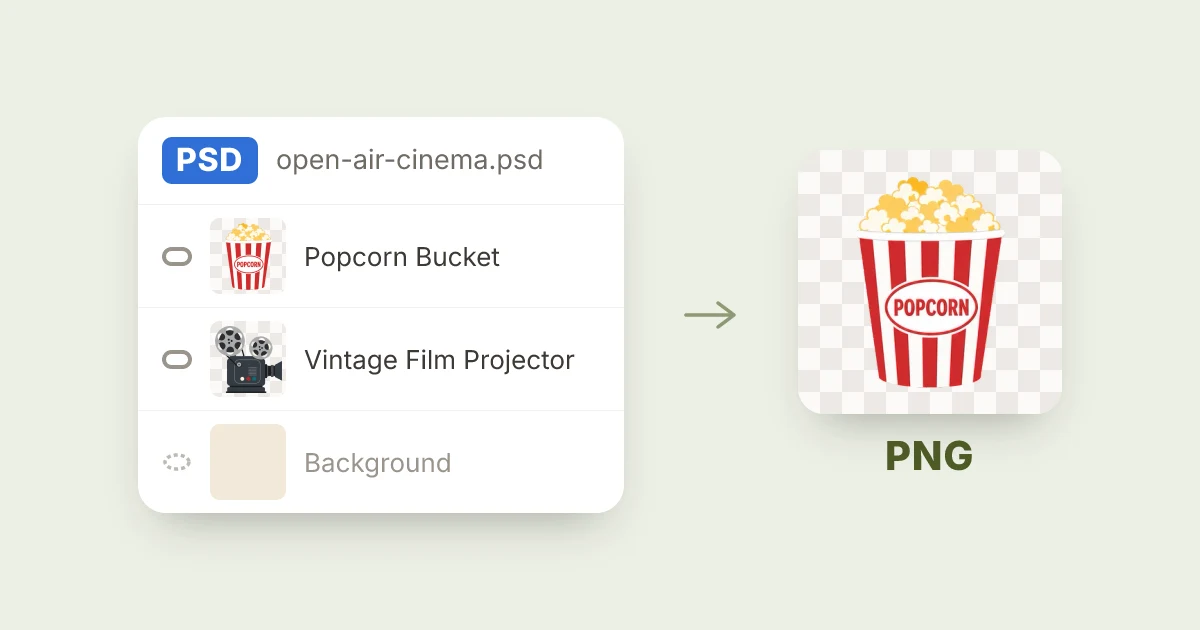
To convert a PSD to PNG and keep its transparency, hide any filled background layer and export as a 32-bit PNG: in Photoshop, choose File > Export > Export As, pick PNG and leave Transparency on. Without Photoshop, a browser converter draws layers onto a transparent canvas and can save the whole image or every layer as its own PNG.
Whole image, every layer or both?
Before you export, decide what you need out of the file:
PNG is lossless and keeps transparency in RGB and grayscale images (Adobe: image file formats supported in Photoshop). JPG does not support transparency at all; how to convert a PSD to JPG covers that route.
Why does my PNG come out with a white background?
Almost always because the PSD is not transparent where you think it is. A PNG keeps only the transparency that visible layers leave:
1How to convert PSD to PNG in Photoshop
Photoshop has three export commands, each suited to a different job (menu names follow Adobe’s current help pages).
Quick Export as PNG and Export As
Use Quick Export (File > Export > Quick Export as PNG) after hiding unwanted layers; its PNG options (Transparency, Smaller File 8-bit, sRGB) live in Edit > Preferences > Export (Windows) or Photoshop > Settings > Export (Mac). To export only some layers, select them in the Layers panel, right-click and choose Quick Export as PNG.
When you need custom dimensions or multiple @2x / 0.5x scales, use Export As:
- Open Export AsChoose File > Export > Export As (Adobe: Export As).
- Enable transparencySet Format to PNG and leave Transparency selected.
- Set size or scaleAdjust Width, Height or Scale, or add scale rows such as
0.5xand2xwith a@2xsuffix. - Embed sRGB if neededConvert to sRGB and embed the colour profile for consistent browser colours.
- ExportSelected layers, groups or artboards save as separate images; otherwise the visible document exports as one PNG.
Export Layers to Files: one PNG per layer
To save every layer automatically: choose File > Export > Layers to Files (Adobe guide), pick a destination folder and file prefix, optionally tick Visible Layers Only, set File Type to PNG and click Run. Name your layers beforehand, or you get “Layer 1”, “Layer 2” and so on.
2How to convert PSD to PNG without Photoshop
The free PSD to PNG converter runs on your device in the browser with no upload and no account:
- Drop PSDsUp to 50 PSD or PSB files, converted one at a time.
- PreviewInspect the whole image or every layer side by side.
- Pick mode & sizeWhole image, Every layer or Both; 100/50/25% or 4096/2048/1024 px; Canvas size or Trimmed.
- DownloadOne PNG, or a ZIP with a folder for each PSD.

Canvas size or trimmed layer files?
- You need every layer PNG to share the full document dimensions
- Layers must stack back into exact original positions (animation or rebuilding layouts)
- You want each layer cut tight to its visible pixels with no empty margin
- You are exporting smaller web assets, icons or stickers to place by hand

File size and format limits
PNG is lossless, so large documents can be heavy. Scale down to 50% or 25%, cap the longest side at 4096, 2048 or 1024 px, or test Photoshop’s Smaller File (8-bit) PNG on simple graphics (always checking soft edges and gradients afterwards).
Save the whole image, every layer or both for up to 50 PSD or PSB files, with no sign-up and no upload. Need to inspect layers first in PSD Viewer, or turn a flat PNG into layers with PNG to PSD? Both are linked right there.
FAQ
How do I convert a PSD to PNG without losing transparency?
Hide or delete any filled background layer, then export as a 32-bit PNG. In Photoshop, use File > Export > Export As with Format set to PNG and Transparency selected. A browser converter that draws on a transparent canvas, such as PSD to PNG, keeps it too.
Why is the background of my PNG white?
The PSD has a visible layer that fills the canvas, usually the Background layer, or the PNG was saved without transparency. Hide the filled layer and make sure Transparency is on in Photoshop’s PNG settings.
Can I save each layer of a PSD as a separate PNG?
Yes. In Photoshop, use File > Export > Layers to Files, or select layers and use Export As. In the browser, choose Every layer or Both in the PSD to PNG converter, and you get a ZIP with one PNG per layer in stacking order.
What is the difference between canvas size and trimmed layer PNGs?
Canvas-size files all have the size of the whole document, with each layer in its original place, so they line up when stacked. Trimmed files are cut to each layer’s visible pixels, which makes them smaller but drops the position.
Can I convert a PSD to PNG without Photoshop?
Yes. A browser-based converter reads the PSD on your device and saves PNG files without installing anything. Free editors such as Photopea and GIMP can also open a PSD and export PNGs.
How many PSD files can I convert at once?
The PSD to PNG converter takes up to 50 files at a time and converts them one after another. You can download them all as one ZIP with a folder for each PSD.