
Compress a PSD File: 9 Ways to Reduce PSD File Size in Photoshop
Shrink a PSD without breaking it: turn off Maximize Compatibility, delete hidden layers, crop hidden pixels, and know when to export PNG or JPG instead.
On this page7 sections
There is no one-click “compress” setting for PSD files: a PSD shrinks only when you remove stored data. Safe cuts—turning off Maximize Compatibility, deleting hidden layers and cropping off-canvas pixels—keep your layers intact, while rasterizing smart objects, lowering bit depth or flattening trade away editability.
.psd.Why are PSD files so big?
Adobe lists pixel dimensions, bit depth, layer count and extra channels as the main drivers (Image file size factors), plus off-canvas pixels kept after cropping, embedded smart object originals, alpha channels and an optional flattened composite. Check the status bar in Photoshop or inspect every layer’s size in the free PSD viewer without opening Photoshop.
Safe ways to shrink a PSD without losing visible layers
- Turn off Maximize PSD and PSB File CompatibilityUnder Preferences > File Handling, set Maximize Compatibility to Ask or Never. Per Adobe’s file format specification, Photoshop skips writing the extra flattened preview—saving substantial space on files you only open in Photoshop (leave it on when sending to apps or viewers that rely on the composite).
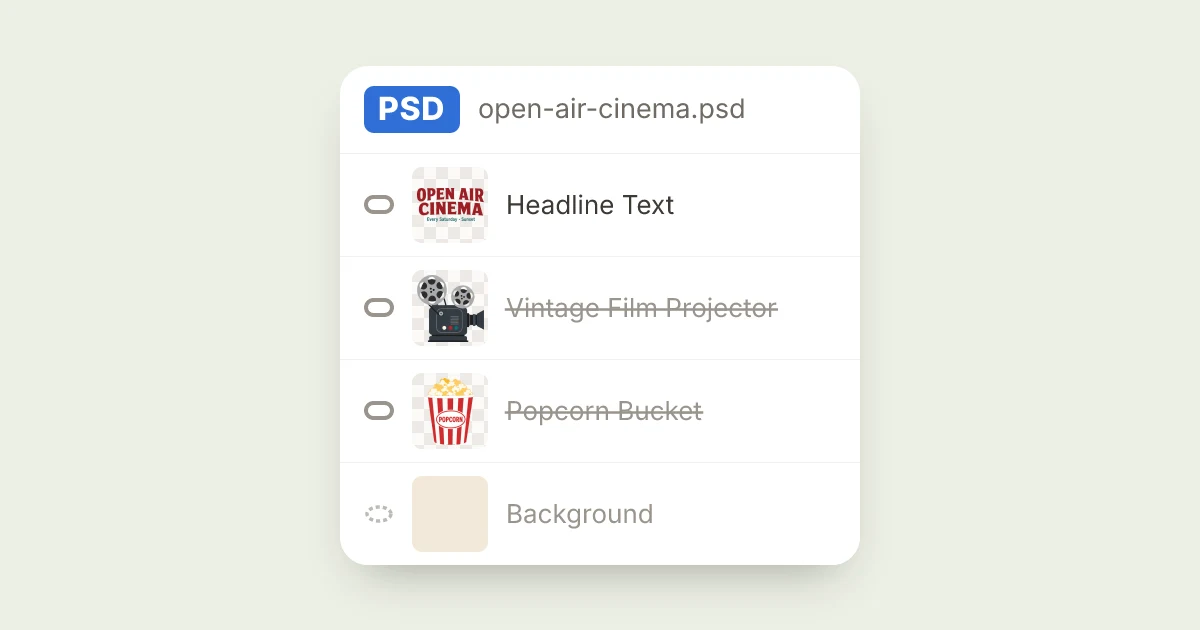
- Delete hidden and unused layersRun Layer > Delete > Hidden Layers and remove empty or duplicate layers—unless you rely on layer comps or frame-by-frame timeline animations where hidden layers store frames.
- Crop away pixels outside the canvasSelect the Crop tool, turn Delete Cropped Pixels on (Crop tool options), and apply the crop to permanently remove off-canvas pixels on every layer.
- Remove extra alpha channelsDelete unused saved-selection channels in the Channels panel, or uncheck Alpha Channels in Save As / Save a Copy (File saving properties).
- Turn off a detailed History LogUnder Preferences > History & Content Credentials, switch the History Log off or to an external text file so edit logs do not bloat metadata (History Log preferences).
Bigger cuts that trade away editability
The remaining four methods reduce heavy documents further when safe steps are not enough:
- Slim down smart objects: embedded smart objects keep full originals (Smart Objects overview). Choose Layer > Smart Objects > Rasterize on layers you no longer need to resize, or link external files instead (noting Photoshop still stores a scaled preview that can occasionally be larger and requires sending linked files alongside).
- Lower bit depth: switch Image > Mode > 8 Bits/Channel after heavy tonal edits if 16-bit or 32-bit headroom is unnecessary for web or UI work.
- Reduce pixel dimensions: Adobe’s Manage image file size guide recommends resizing oversized canvases with Image > Image Size (avoid for large print masters).
- Merge or flatten a delivery copy: Layer > Flatten Image merges visible layers, discards hidden ones and fills transparency with white (Flatten layers); keep the layered master untouched.
What each step costs you
| Step | Typical saving | What you give up |
|---|---|---|
| Maximize Compatibility off | The whole flattened copy | Previews and opening in some other apps |
| Delete hidden layers | Whatever was hidden | Alternatives you may have wanted later |
| Delete cropped pixels | Pixels outside the canvas | Re-cropping wider later |
| Rasterize smart objects | Their full originals | Lossless resizing and editable smart filters |
| Remove alpha channels | One full-size channel each | Saved selections |
| 16-bit to 8-bit | Large share of pixel data | Headroom for heavy tonal edits |
| Smaller pixel dimensions | Grows with the reduction | Detail, and large print sizes |
| Flatten | The most | All editability |
Myths: what will NOT make a PSD smaller
When a PNG or JPG is the real answer
- The recipient needs transparency or sharp text and graphics
- You want individual layer PNGs without Photoshop (PSD to PNG guide)
- The design is mostly a photo and small file size matters most
- A client or colleague only needs a flat proof (PSD to JPG guide)
Convert up to 50 PSD files at once to PNG (Whole image, Every layer or Both; 100/50/25% or capped at 4096/2048/1024 px; Canvas size or Trimmed) without sign-in or uploading—or switch to PSD to JPG for quality-controlled white-background exports.
FAQ
How do I compress a PSD file without losing layers?
Turn off Maximize PSD and PSB File Compatibility, delete hidden and empty layers, crop with Delete Cropped Pixels on to remove pixels outside the canvas, and delete unused alpha channels. None of these touch the visible layers you are keeping.
Does turning off Maximize Compatibility damage the file?
No, the layers and all your edits stay intact in Photoshop. The file simply no longer contains a flattened preview, so some other apps may not be able to preview or open it.
Why is my PSD bigger than the JPG of the same image?
The JPG is one flattened, compressed picture. The PSD holds every layer at full size, hidden layers, smart object originals, channels and usually a flattened copy as well, so it can easily be many times larger.
Can I zip a PSD to make it smaller?
You can, and it makes sending one file easier, but how much it saves varies from file to file. Removing data from the document with the steps above is more reliable.
Does deleting history make a PSD smaller?
No. History states and snapshots are not saved in the file; Photoshop clears them when you close the document. They use memory while you work, not disk space in the saved PSD.
What is the best format to send a PSD preview?
PNG if the design has transparency or crisp text and graphics, JPG if it is mostly a photo and size matters most. Keep the layered PSD as your master copy.